Network & remote access
Set the Mac's IP address and DNS, connect Tailscale, serve the dashboard with a trusted certificate, and reach your containers remotely by their own IPs.
Two Settings pages cover networking: System → Network for the Mac's own interfaces, and System → Tailscale for reaching Udon and your containers from anywhere without opening a port on your router.
The Mac's network
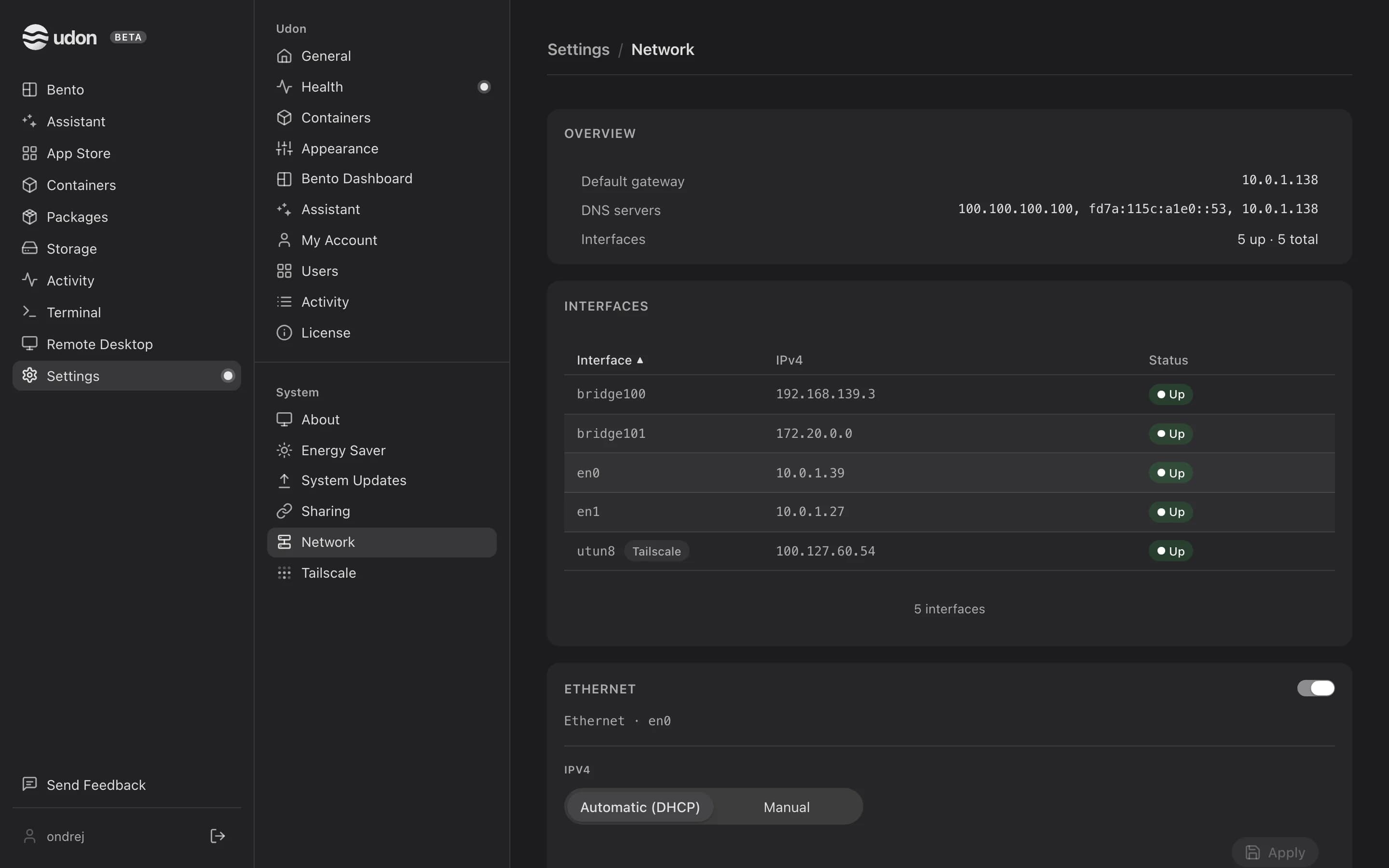
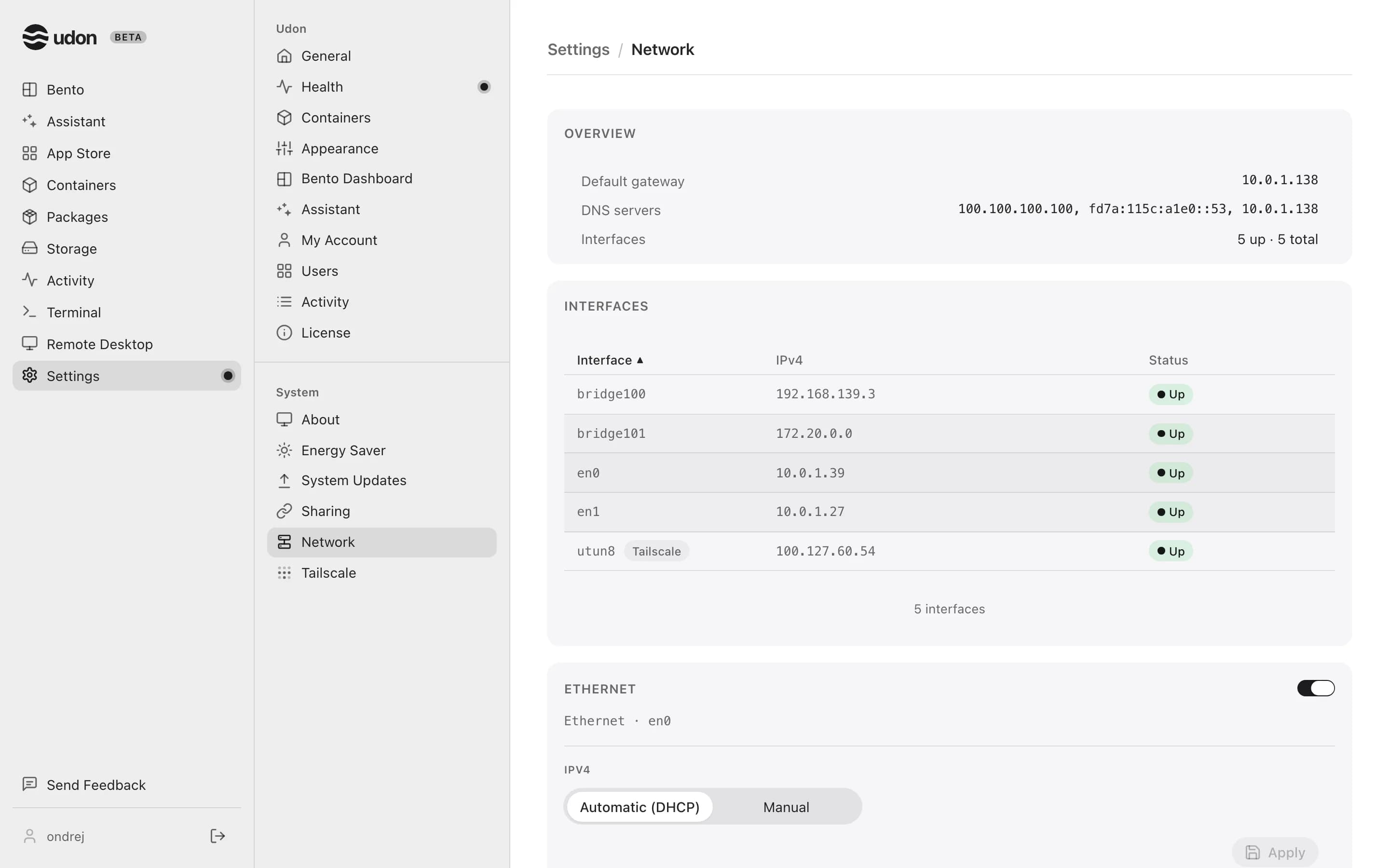
The Overview card shows the default gateway, the DNS servers, and how many interfaces are up. The Interfaces table lists each interface with its IPv4 addresses and status, and tags the ones Tailscale and your containers use.
Each network service, such as Wi-Fi or Ethernet, gets a card with:
- A switch in the card's header that turns the service on or off.
- IPv4: Automatic (DHCP) or Manual, with IP address, subnet mask, and router fields.
- DNS servers: add a server with the + button and remove one with its ×. Applying an empty list clears them, so the network's own DNS takes over.
IPv4 and DNS each have an Apply button, which turns on once you've made a valid change.
This page needs Admin Privileges. Without them it shows Admin Privileges required and an Open Health button instead. See Settings.
Tailscale
Tailscale gives this Mac a stable private address that your other devices can reach from anywhere. Settings → Tailscale needs an admin account but not Admin Privileges.
If Tailscale isn't installed, the page names the two ways to get it: the Mac app from
tailscale.com, or the tailscale Homebrew package. Udon finds either one with no CLI setup. If
it's installed but not running, the page says so and shows the daemon's message. Open the
Tailscale app and finish signing in, and the page updates by itself.
Open Settings → Tailscale and click Sign in.
Under Finish signing in, click Open sign-in page (or copy the link) and approve this Mac.
The Status card reads Connected, with your tailnet's name and the Tailscale version.
Two icon buttons on the Status card end the session: Disconnect (a power symbol) and Log out (red). Hover one to see its name.
Remote access
Once connected, the Remote access card shows the address other tailnet devices use, under Reachable on your tailnet. Udon's certificate is self-signed, so browsers show a warning there.
Turn on Serve with a trusted certificate to publish the dashboard with a valid certificate, with no warning and no port in the address. The Trusted URL appears below the switch.
Don't forward Udon's port on your router. Use Tailscale or another private network instead; the install guide has the short version.
Reach containers by their own IPs
In the Container access card, turn on Advertise the container network to offer your
containers' subnet (for example 192.168.64.0/24) as a Tailscale route. Approve the route once in
the Tailscale admin console. After that, any device on your tailnet reaches a container at its own
IP, with no port published on the Mac.
Preferences and devices
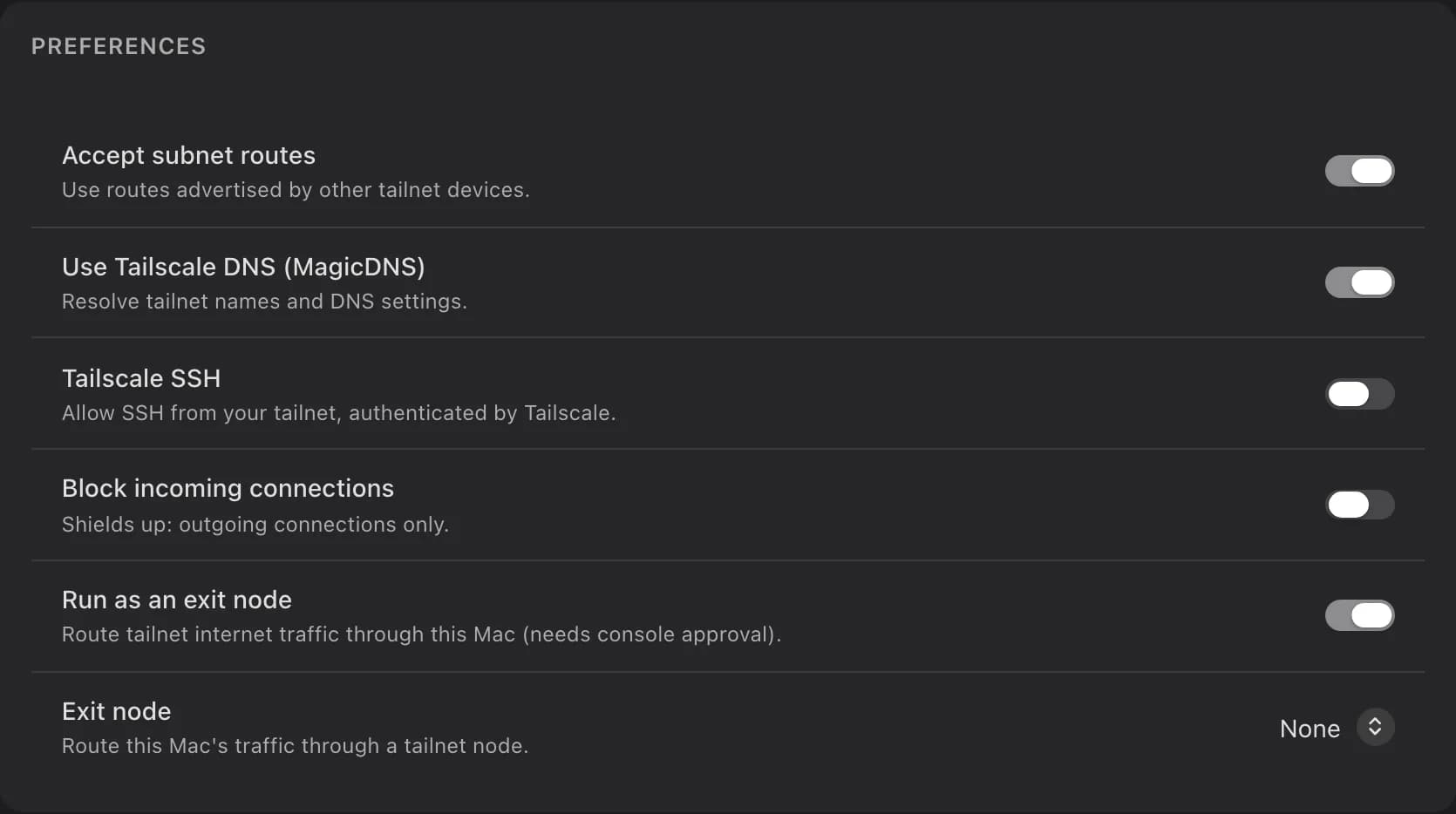
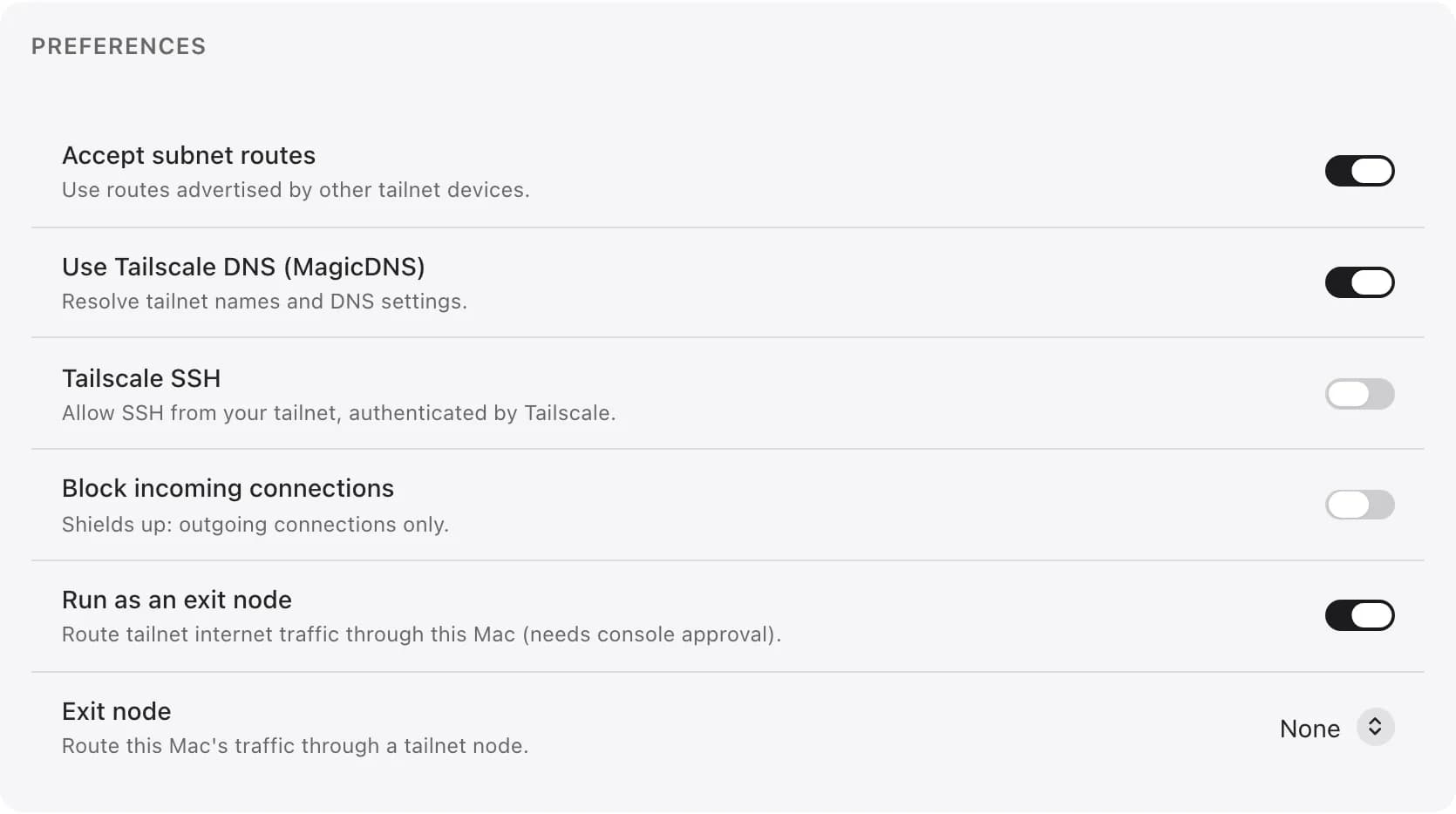
The Preferences card has switches for accepting subnet routes from other devices, MagicDNS, Tailscale SSH, blocking incoming connections, and running this Mac as an exit node. Its Exit node picker routes this Mac's own traffic through another node on your tailnet.
The Devices table lists this Mac first, then its peers, with each one's OS, Tailscale IP, and online status. Click a column heading to sort; the order holds for the rest of the browser session.
Storage & files
Browse your Mac's volumes and disks, check SMART disk health, mount network shares, share folders over SMB, and upload or download files from the browser.
Terminal & remote desktop
Open a shell on your Mac from the browser, keep sessions running between visits, and view or control the Mac's screen through macOS Screen Sharing.