Settings
Every Udon Settings page, the macOS settings it can change from the browser (energy, updates, sharing, network), and how to grant Admin Privileges.
Settings has two groups: Udon, the dashboard's own settings, and System, the macOS settings Udon manages on this Mac. Settings is for admin accounts; everyone else sees only their own My Account page.
On a phone, Settings opens on a list of both groups. Tap a page to open it, and tap the back arrow in the top-left corner to return to the list.
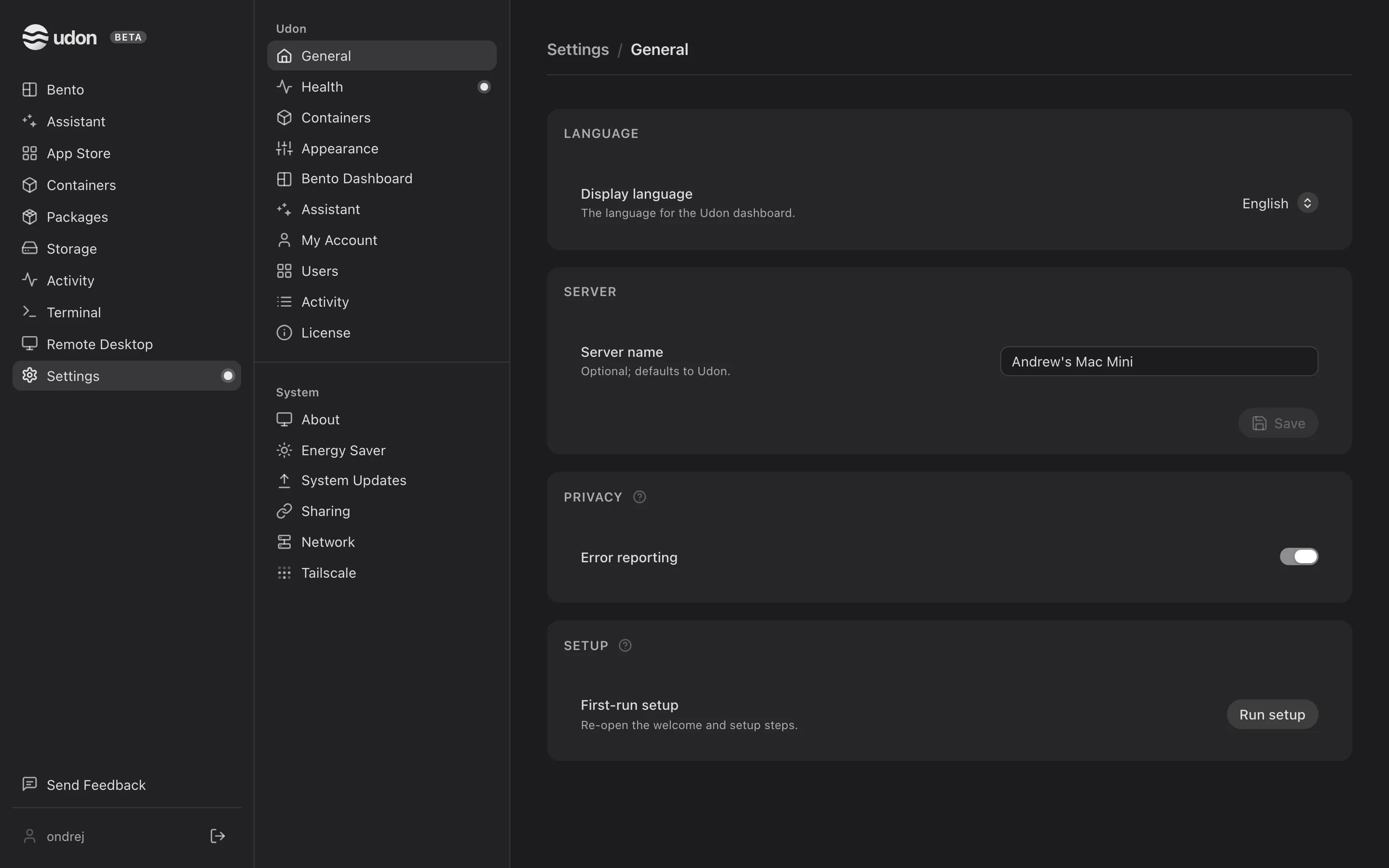
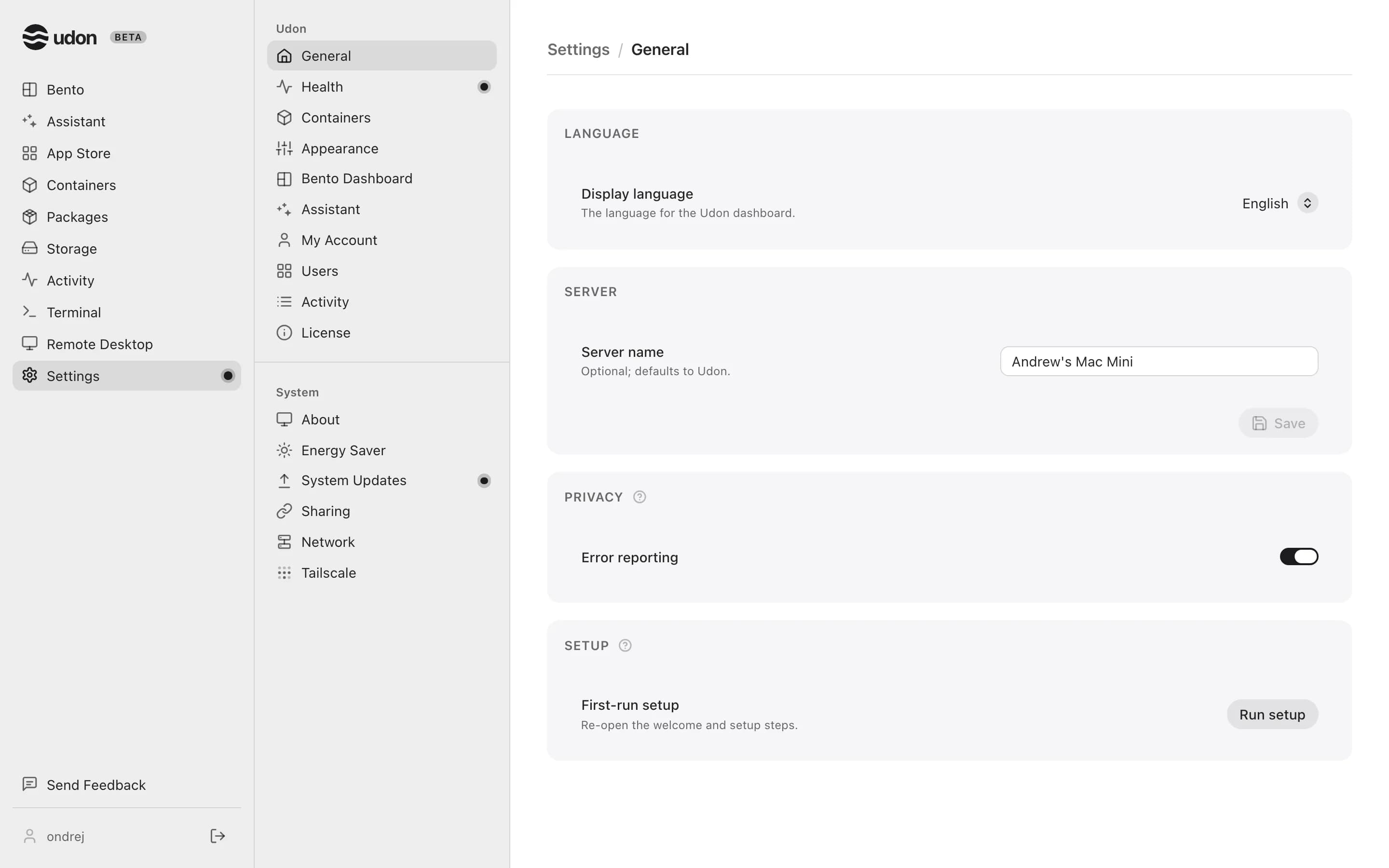
| Group | Pages |
|---|---|
| Udon | General, Health, Containers, Appearance, Bento Dashboard, Assistant, My Account, Users, Activity, License |
| System | About, Energy Saver, System Updates, Sharing, Network, Tailscale |
General
Udon → General, where Settings opens, has four cards:
- Language: the dashboard's display language (English, 中文, Español, Français, Deutsch, or Čeština). Anything not yet translated shows in English.
- Server: the server name, Udon by default. It appears in the dashboard header and the browser tab, and on the sign-in screen unless you set a login headline (see Appearance).
- Privacy: the Error reporting switch. See Security.
- Setup: Run setup opens the first-run wizard again. Nothing is reset.
Your settings follow your account
Your appearance choices, language, dashboard layout, pinned packages, and setup progress are stored on the server for your account, so they follow you to any browser or device. A few things stay on each device, such as the terminal's font size and the Remote Desktop username; the Remote Desktop password is never saved.
Health
Settings → Health checks Udon's permissions and services. See Monitoring.
Containers
Settings → Containers picks the container engine Udon controls: Apple Container, or OrbStack, which the picker marks (Beta). An engine that isn't installed shows as (not detected) with a link to install it, and can't be chosen. Nothing moves between engines. Switching restarts Udon: click Save & restart, and the dashboard comes back once the daemon does.
Appearance
The theme, font, and other display options are covered in the dashboard guide. Also on this page:
- Wallpaper (General tab): Show on picks Dashboard or All screens. A wallpaper starts on Dashboard. On other screens, Udon dims and blurs it more to keep controls readable.
- Reduce motion (General tab, Accessibility card): turns off the dashboard's animations and transitions.
- Login tab: the sign-in screen's Login headline (empty uses the server name), a short description, the card position, and a background.
Bento Dashboard
Settings → Bento Dashboard sets the spacing between dashboard tiles: Normal, Large, or Extra large.
Assistant
Settings → Assistant connects an AI provider and controls MCP access. See AI Assistant & MCP.
My Account and Users
My Account (password, two-factor authentication, sign-out) and Users (accounts and roles) are covered in Sign in & accounts.
Pair a phone
The Paired devices card in Settings → My Account lists paired phones and when each was last seen. Its + button (Pair a phone) shows a QR code for the Udon phone app to scan; the code works once and expires after five minutes. A phone's × button (Revoke) cuts it off at once. Udon advertises itself on your local network, so the app finds the Mac without an address.
The Udon phone app isn't in the app stores yet. The iPhone app arrives on TestFlight first; the Android app is planned for January 2027.
Activity
Settings → Activity is the audit log: when, who, what, and a detail for each action taken
through Udon. Assistant tool calls read like "Assistant: list containers", with via=mcp in the
detail when an MCP client made them; their arguments are never stored. Pick a Time range (last
24 hours, 7 days, 30 days, or all time); the log shows 50 entries a page. The Activity page in
the sidebar is different: it's the live process monitor.
Log retention sets how long entries are kept: 1 day, 1 week, 1 month (the default), 1 year, or Off. A change asks you to confirm, then deletes older entries right away. Off stops recording and keeps what's already logged. The change itself is always recorded.
License
Settings → License shows your version, plan, and serial, checks for and installs updates, and re-checks the license. A Mac that Udon support enrolls as a development device shows Development mode there; there is no Beta switch in Settings. See Licensing & updates.
System settings
Energy Saver, System Updates, Sharing, and Network change macOS itself and need Admin Privileges. Without them, each page shows Admin Privileges required with an Open Health button.
- Energy Saver: sleep timers for the computer, display, and disks, plus wake for network access, Power Nap, restart after a power failure, and staying reachable while asleep. To keep the Mac awake without changing these, use Keep Mac awake in the menu bar app.
- System Updates: automatic update options (check, download, install macOS updates, install security responses) and the list of available macOS updates.
- Sharing: Remote Login (SSH), Screen Sharing (VNC, used by Remote Desktop), and File Sharing (SMB, used for shared folders). With Screen Sharing on, the page shows its address.
- Network: the Mac's interfaces, IPv4, and DNS. See Network & remote access.
About shows read-only facts about the Mac: its names, model, chip, memory, macOS version, uptime, time zone, and serial number. Tailscale needs an admin account but not Admin Privileges; see Network & remote access.
Admin Privileges
Admin Privileges let Udon change macOS settings, network configuration, and file sharing, and restart or shut down the Mac. The daemon runs as your user, so Udon installs a signed helper that runs these actions as root. Udon requires Admin Privileges and Full Disk Access: until both are granted, the dashboard shows a full-screen prompt instead of its pages.
Grant Admin Privileges from the menu bar app: use the Allow admin privileges step in the Welcome window, or expand Permissions and click Admin Privileges, then enter your macOS administrator password. If an update needs a replacement helper, Udon asks for authorization again. The helper belongs to the macOS account that owns the installation. Use that account to repair or remove it; see Startup troubleshooting.
Full Disk Access has its own Udon switch in System Settings. After a successful check, Udon caches that grant until restart or a manual refresh. Use Recheck in Settings → Health after changing the switch. See Verify Full Disk Access.
Attention dots
A dot on a Settings page means something there needs you, and the same dot marks Settings in the sidebar and in the phone menu. Red means a failing health check, such as a stopped container engine. The accent color means something is waiting: an Udon update, macOS updates, or a newer Homebrew or container engine.
Assistant or MCP connection fails
Check assistant provider errors, pending approvals, and external MCP connections with missing or rejected tools.
Menu bar app
Finish setup in the Welcome window, start and stop Udon, keep the Mac awake, check permissions, and uninstall Udon from its macOS menu bar app.