App Store
Install self-hosted apps from Udon's catalog, any public Docker Hub image, or a Homebrew package on your Mac, with dependencies listed first.
App Store in the sidebar is where you find and install software for the Mac. Its three tabs, Catalog, Docker Hub, and Homebrew, share one search field; click the magnifier or start typing to open it.
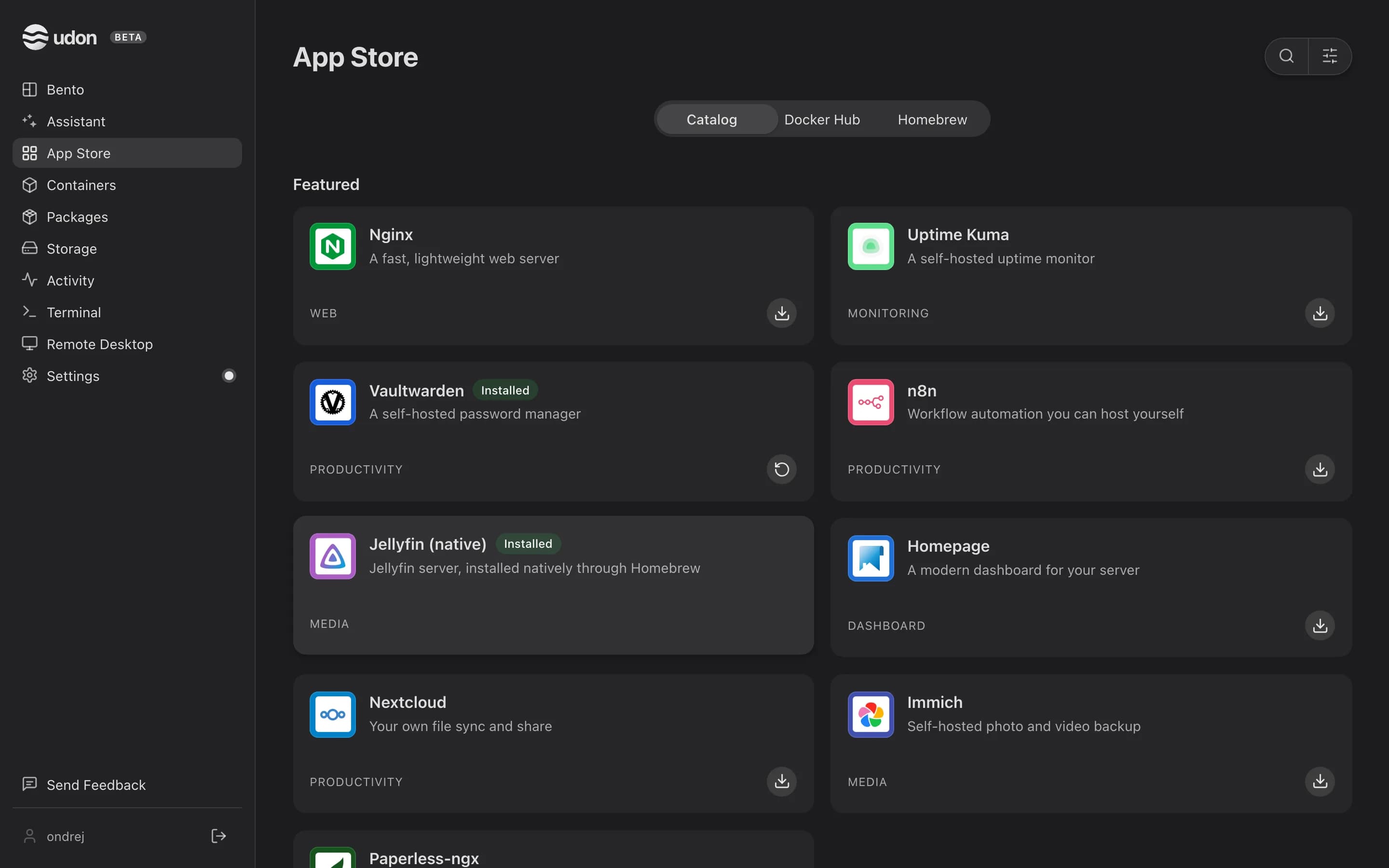
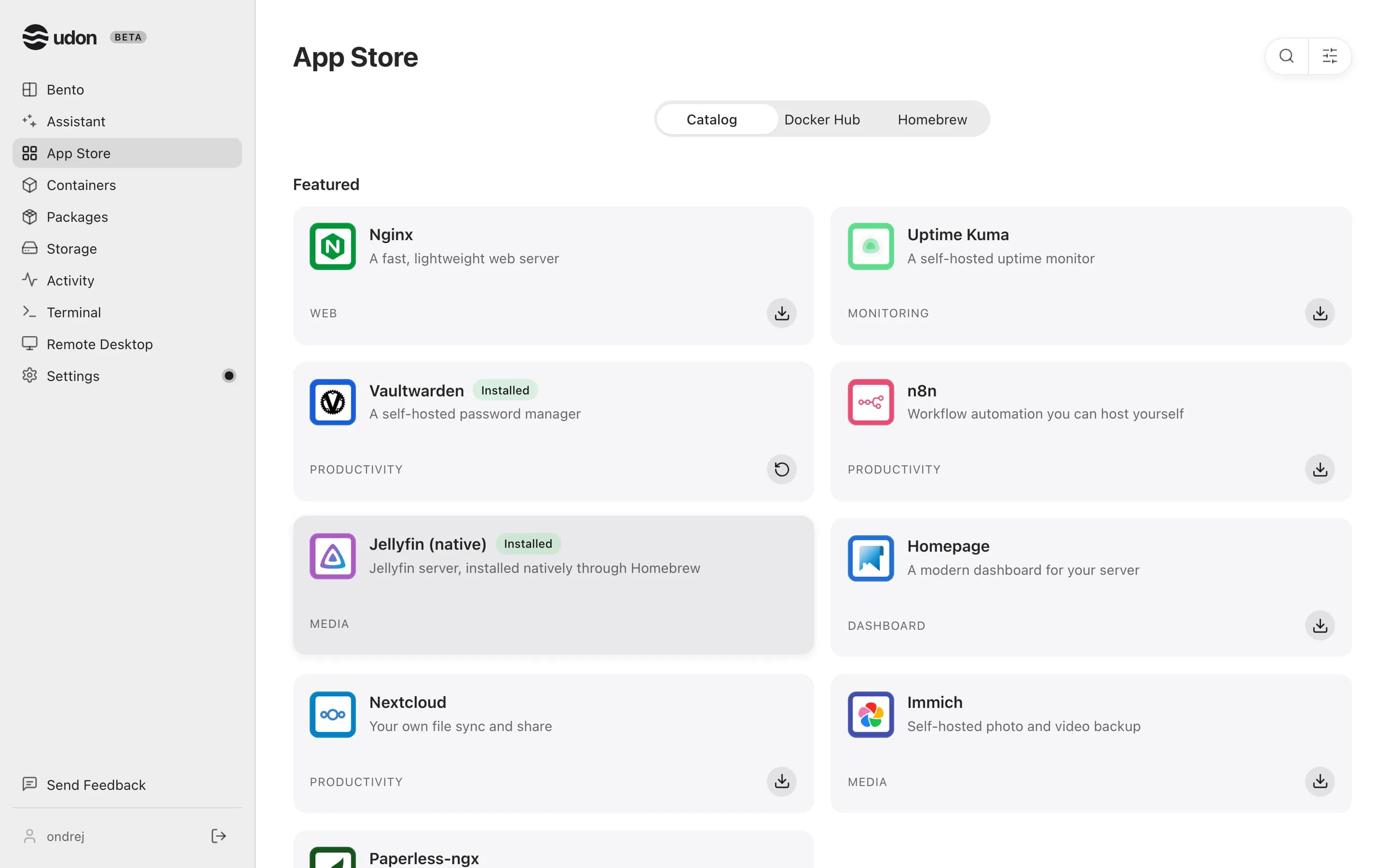
Catalog
The Catalog is Udon's curated list of ready-to-run apps: media servers, databases, dashboards, developer tools, and more. With no search or filter, the first page opens with a Featured row above the full grid, and the grid shows 24 apps per page. Each card shows an icon, a name and tagline, and a category, plus an Installed chip for apps you already have. Most apps run as containers; a few that benefit from running natively, like media servers that use the Mac's hardware video transcoding, install through Homebrew instead. The detail's Type row tells you which.
Search matches names, taglines, descriptions, and categories. The Filter icon narrows the grid by one or more categories, or to installed apps; a dot on it marks an active filter, and Clear filters resets it.
App detail
Click a card to open its detail in a panel over the grid: a description and one Information card with the publisher, category, type, version, license, image or Homebrew name, ports, tags, and links to the app's website and docs. Install stays pinned to the bottom of the panel.
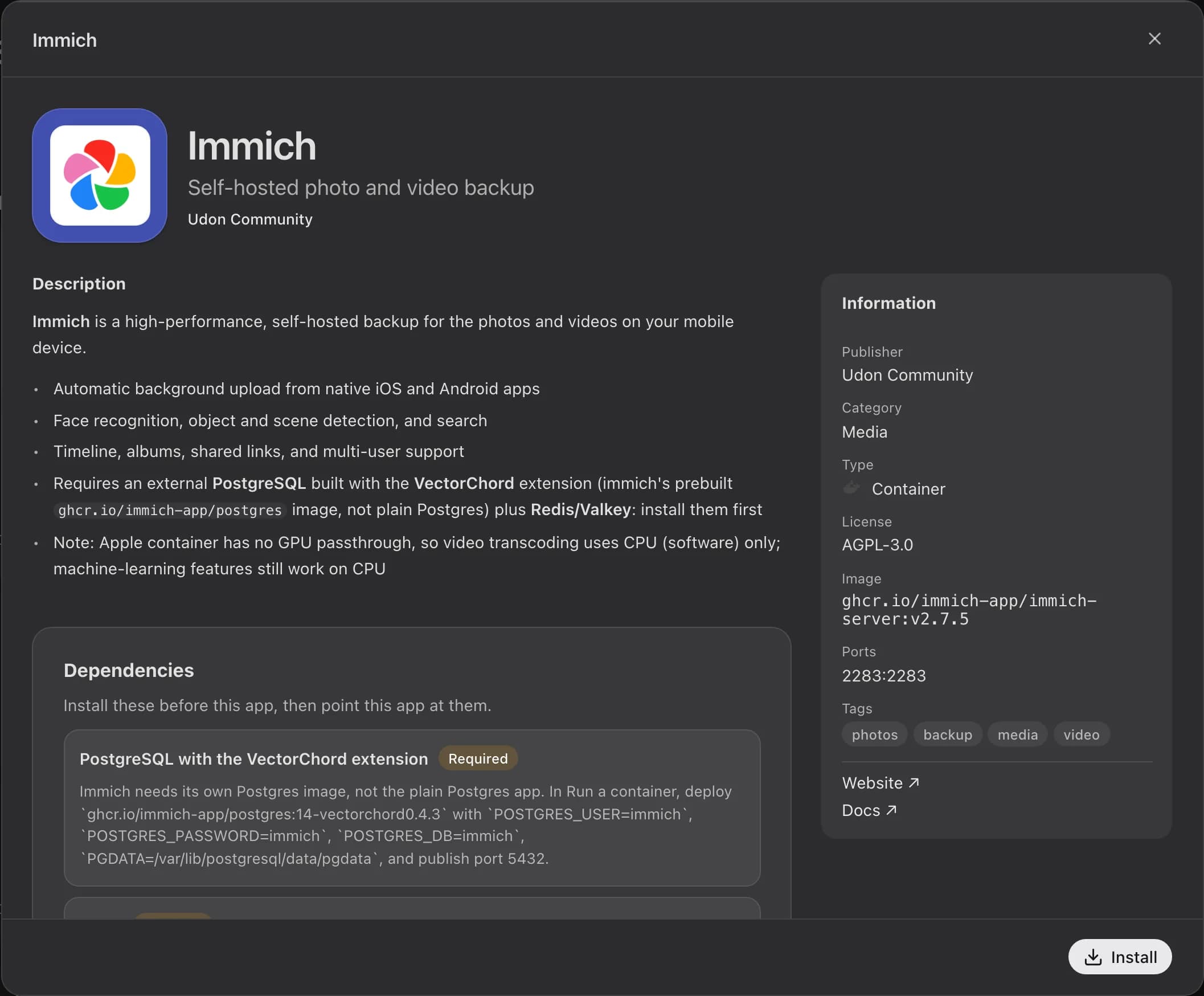
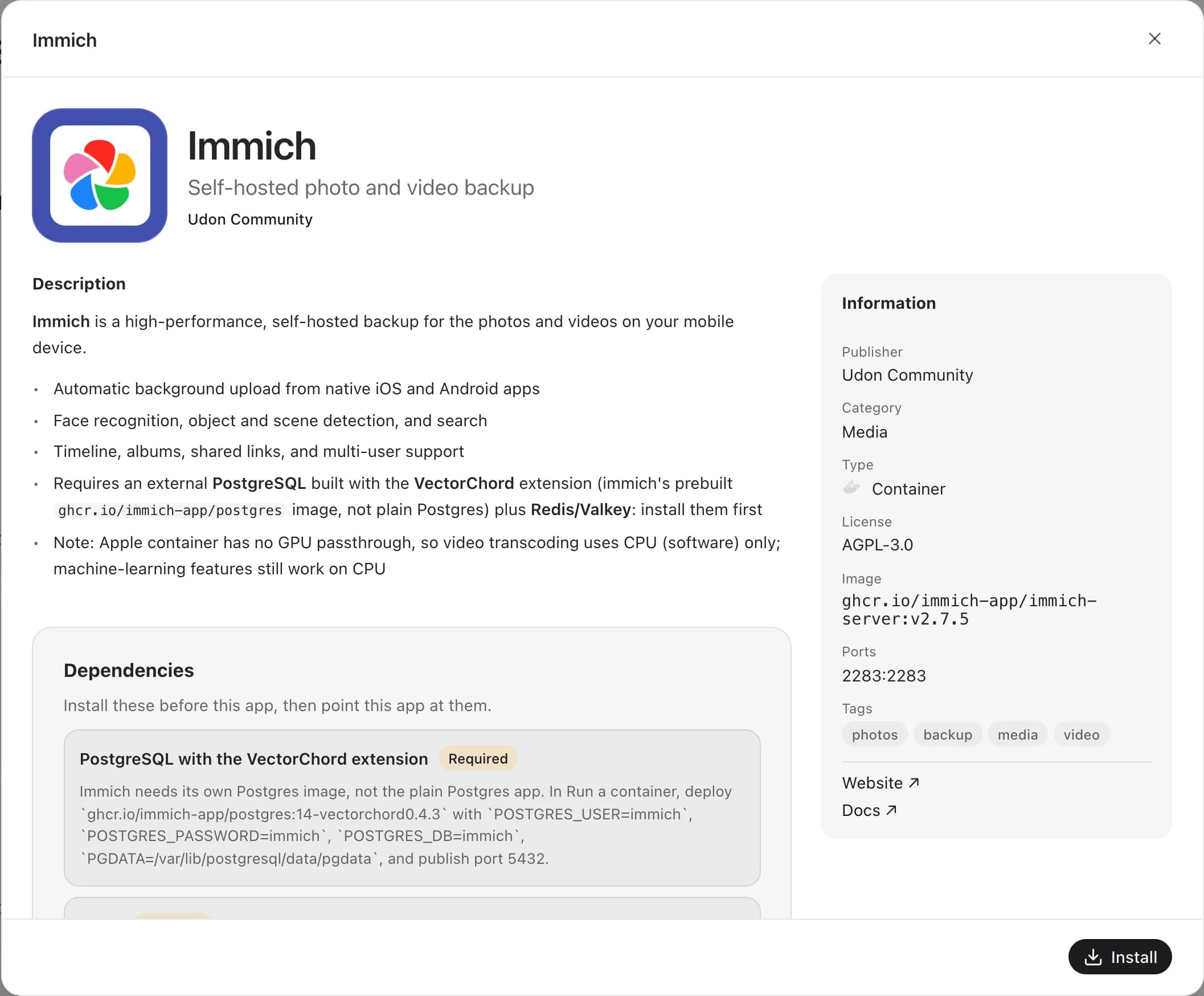
Dependencies and install instructions
An app that needs something else first says so on its detail:
- Dependencies lists what to install first, each marked Required or Recommended, with a note on how the app uses it. A dependency that's in the catalog links to its own detail. Install it (say, PostgreSQL), then point the app at your Mac's IP and the dependency's published port.
- Install instructions spells out the first-run steps, like creating a database or the first admin user.
The install icon on a card opens the detail first for a Homebrew app or an app with dependencies or instructions, so you see what it needs before you commit.
Installing an app
Click Install on the detail, or the install icon on a card.
For a container app, the panel becomes the Run form, filled in with the image, ports, environment
variables, and volumes the catalog defines; see Deploy a container for
each field. A Homebrew app opens the live terminal from the Packages page and
runs brew install.
Watch the pull and start-up output. The app's addresses appear once the install succeeds.
On an installed container app, the card's icon becomes Reinstall. Udon pulls the image first and only then replaces the old container, so a failed pull leaves the old one running.
Installing a container app needs an operator or admin account and a running container engine. Installing a Homebrew app needs an admin. Viewers can browse.
If the engine is installed but not running, a warning on the Catalog and Docker Hub tabs says why, and container installs stay off until it answers. With no engine installed they stay off too; the Containers step of the Welcome window installs Apple Container.
Docker Hub and Homebrew tabs
Docker Hub searches public images on Docker Hub. Type two or more characters for a table of up to 25 images with their stars and pulls, sorted by stars; click a heading to sort by another column. Official marks Docker Official Images. A row's install icon opens the Run form with the image and a container name filled in; for an image you already run, the icon is Run again.
Homebrew searches formulae and casks, up to 20 of each, most-installed first, with a description and the 30-day install count. A package you already have shows Installed. Install opens the same live terminal as the Packages page; manage what you install from Packages, which also explains how to add Homebrew if the tab says it is missing.
Both tabs keep your sort until you close the browser tab, and link directly as /apps?view=hub and
/apps?view=brew.
Stacks
Group related containers into a stack, a Docker Compose project on OrbStack or an Udon group on Apple Container, and start, stop, or restart it as one.
Packages
Browse, upgrade, and remove the Homebrew formulae and casks installed on your Mac from the browser, with a live terminal for every action.