Menu bar app
Finish setup in the Welcome window, start and stop Udon, keep the Mac awake, check permissions, and uninstall Udon from its macOS menu bar app.
Udon installs one signed Udon.app in /Applications containing the daemon, the menu bar app
(udonbar), the helper used for Admin Privileges, and the dashboard.
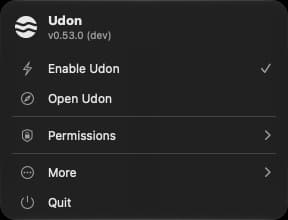
The menu bar app starts when you log in. Its icon is Udon's mark: filled while the daemon runs, an
outline when it's stopped. Click it to open the panel. The header shows the installed version and
build, which is useful when you report a problem.
Welcome window
When the menu bar app starts with a setup step left to do, it opens Welcome to Udon, with the app icon at the top and the steps in two groups. Each step's button is an icon; hover it to see its name.
Under Permissions:
- Add the udond command (Add) creates
/usr/local/bin/udondbehind one administrator prompt. - Allow Full Disk Access (Open System Settings) opens System Settings → Privacy & Security → Full Disk Access. One Udon switch covers the daemon and the menu bar app. If macOS asks, choose Quit & Reopen.
- Allow admin privileges (Allow) installs Udon's helper. Add and Allow share one prompt, so whichever you click first also does the other if it still needs doing.
Under Dependencies:
- Containers is done when Apple Container or OrbStack is installed. Install Apple Container downloads Apple Container's signed installer, checks Apple's signature and runs it behind one administrator prompt, then starts its service.
- Package Manager is Homebrew, which backs the Packages page. Install Homebrew opens Terminal on Homebrew's own installer, which asks for your password there.
While Add, Allow or the Apple Container install runs, its step shows a spinner. The window stays above other windows until you close it. Until every step is done, the panel shows Finish setup, which reopens the window, and Done asks for confirmation before closing it.
Start and stop Udon
Enable Udon starts or stops the daemon; a checkmark shows while it runs. Stopping it takes the dashboard and its API down. Running containers keep running, since they belong to the container engine.
Open Udon opens the dashboard in your default browser.
Keep Mac awake
Keep Mac awake stops the Mac from sleeping on its own, the way caffeinate does, so a
home server stays reachable. A checkmark shows while it's on. The display can still sleep, and a
closed laptop lid still sleeps the Mac. The daemon holds the setting and remembers it, so it
applies whenever Udon runs, including after a restart; the row is unavailable while Udon is
stopped. It is off until you turn it on.
Permissions
Expand Permissions to see the two grants Udon needs: Full Disk Access and Admin Privileges. A granted row shows a checkmark and a refused one a red cross; an orange warning means the check couldn't tell either way. Click a row that isn't granted to run the matching Welcome window step. The dashboard shows a permission screen instead of its pages until Admin Privileges are granted, and while macOS refuses Full Disk Access.
Udon checks Full Disk Access at startup and retries every 10 seconds while macOS refuses it. Once access is confirmed, background file-access checks stop. The circular arrow beside Permissions (shown while it's expanded), Check again on the dashboard's permission screen, and Recheck in Settings → Health request a fresh check from both processes. If macOS leaves the daemon with an old denial after you grant access, Udon restarts it once. See permission troubleshooting if it still reports a problem.
There's no switch to turn Admin Privileges off; see Settings for what they unlock.
More
The collapsed More section holds Restart Udon, Open config file, which opens
config.toml in your default text editor, and Uninstall Udon. Restarting Udon briefly
disconnects the dashboard; running containers keep running.
Uninstall Udon
More → Uninstall Udon is the easiest way to remove Udon. One dialog asks what to keep:
- Uninstall removes
/Applications/Udon.app, its service files, theudondcommand, and the Admin Privileges helper, and keeps your data (config, license, database) in~/Library/Application Support/sh.udonfor a later reinstall. - Uninstall and Remove Data deletes that folder too.
If system files need removing, one macOS administrator prompt appears before anything is deleted,
so cancelling it leaves everything as it was. Homebrew, Apple Container, OrbStack, and your
containers, volumes, and images are never touched. In Terminal, udond uninstall does the same;
see Uninstalling.
An update must finish or recover before you uninstall. Udon confirms that its service has stopped before removing files. If the service cannot stop, it reports the failure and keeps its files.
Udon supports one owning macOS account per Mac. The helper belongs to that account. If another account opens Udon, it can remove its own app files but leaves that helper in place. Sign in to the owning account to remove it. See Uninstall and reinstall troubleshooting if removal stops.
Quit
Quit stops both the daemon and the menu bar app. The dashboard stays down until you log in
again or run udond start in Terminal. Running containers are unaffected.