AI Assistant & MCP
Connect Claude, GPT, a local model, or a coding CLI to deploy and debug apps by chat, and expose Udon's tools to external AI clients over MCP.
Udon's assistant deploys, connects, and debugs apps by calling Udon's own APIs. Use it from a chat in the dashboard, or from an external AI client over the Model Context Protocol (MCP).
The assistant runs inside the Udon daemon on your Mac. Your provider API key stays in a file only the daemon can read and never reaches the browser. Everything the assistant does is limited by your account's role and recorded in the audit log.
Set it up
-
Open Settings → Assistant (admins only) and turn on Enable assistant. The connection settings and the Instructions tab appear; nothing is saved yet.
-
Pick a Provider:
Provider What it needs Anthropic (Claude), OpenAI (GPT), OpenCode Zen (hosted by OpenCode) An API key Custom (OpenAI-compatible) The server's base URL, such as a local Ollama server, and an optional key Claude Code, OpenAI Codex, OpenCode (each on this Mac) The CLI, installed and signed in Changing the provider is saved at once and turns the assistant off until Save passes its test.
-
Enter the API key if the provider needs one. Leaving the field saves the key, checks it, and loads the model list.
-
Pick a Model from the list the provider reports. Custom, OpenAI Codex, and OpenCode take a typed model name instead; for the two CLIs, leave it empty to use the CLI's default.
-
Click Save. Udon tests the connection first and switches the assistant on only if the test passes, adding Assistant to the sidebar. If the test fails, the error says why and the assistant stays off.
Turning Enable assistant off switches the assistant off at once, without a Save.
The Instructions tab adds your own guidance to every chat, such as where your media lives or which images you prefer. Host commands, on by default, lets the assistant run shell commands on the Mac for admin accounts.
Use a CLI already on this Mac
Claude Code, OpenAI Codex, and OpenCode are agents of their own. Udon runs the one you pick in the
background and points it at Udon's MCP server, so it works with whatever account the CLI is signed
into, with no API key to paste. The settings page shows Not installed, Signed out, or
Signed in, and Save won't switch the assistant on until it reads Signed in. Udon finds
the CLI where Homebrew, the standalone installers, and the common Node version managers put it, so
it doesn't need to be on your shell's PATH.
Approvals
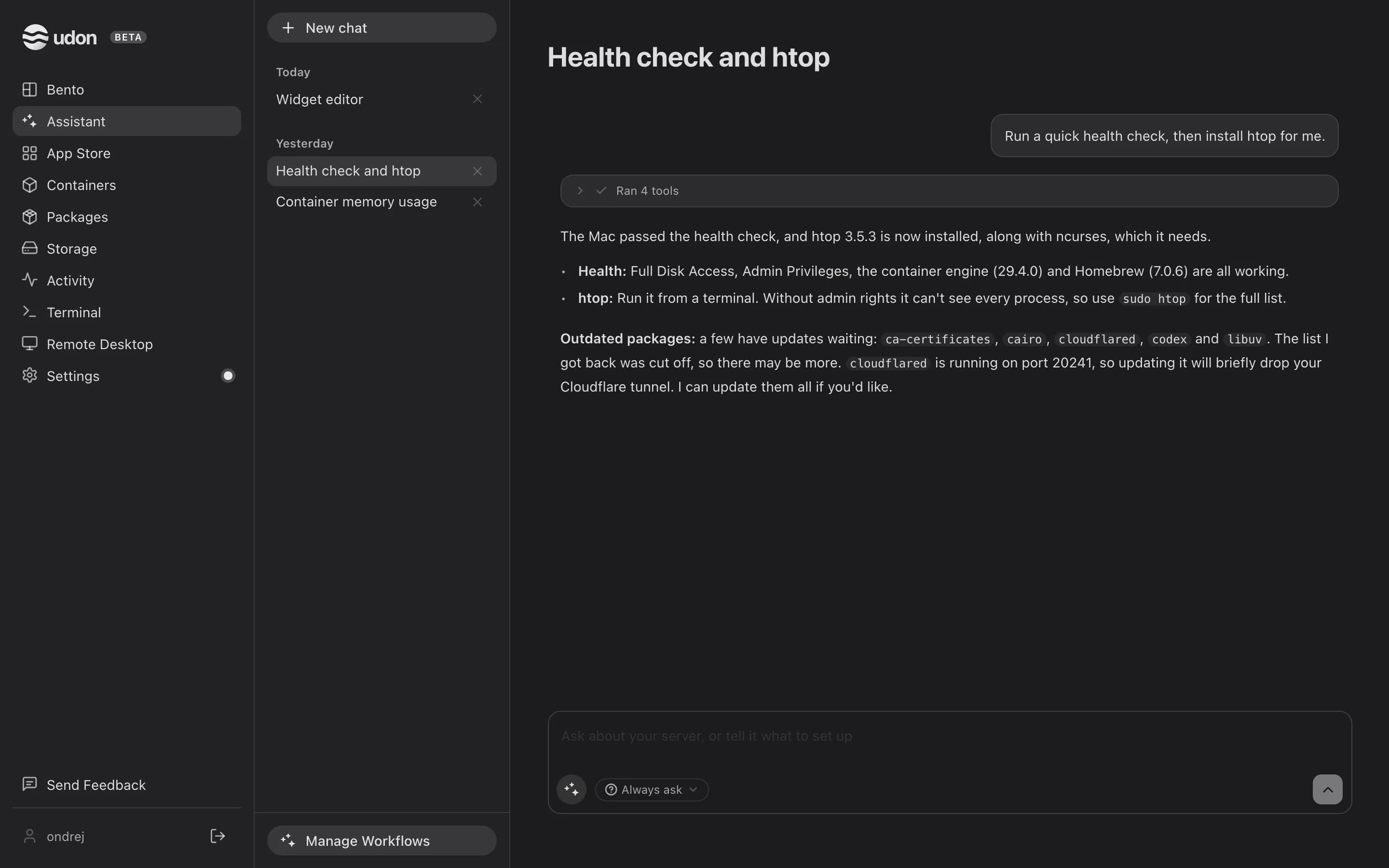
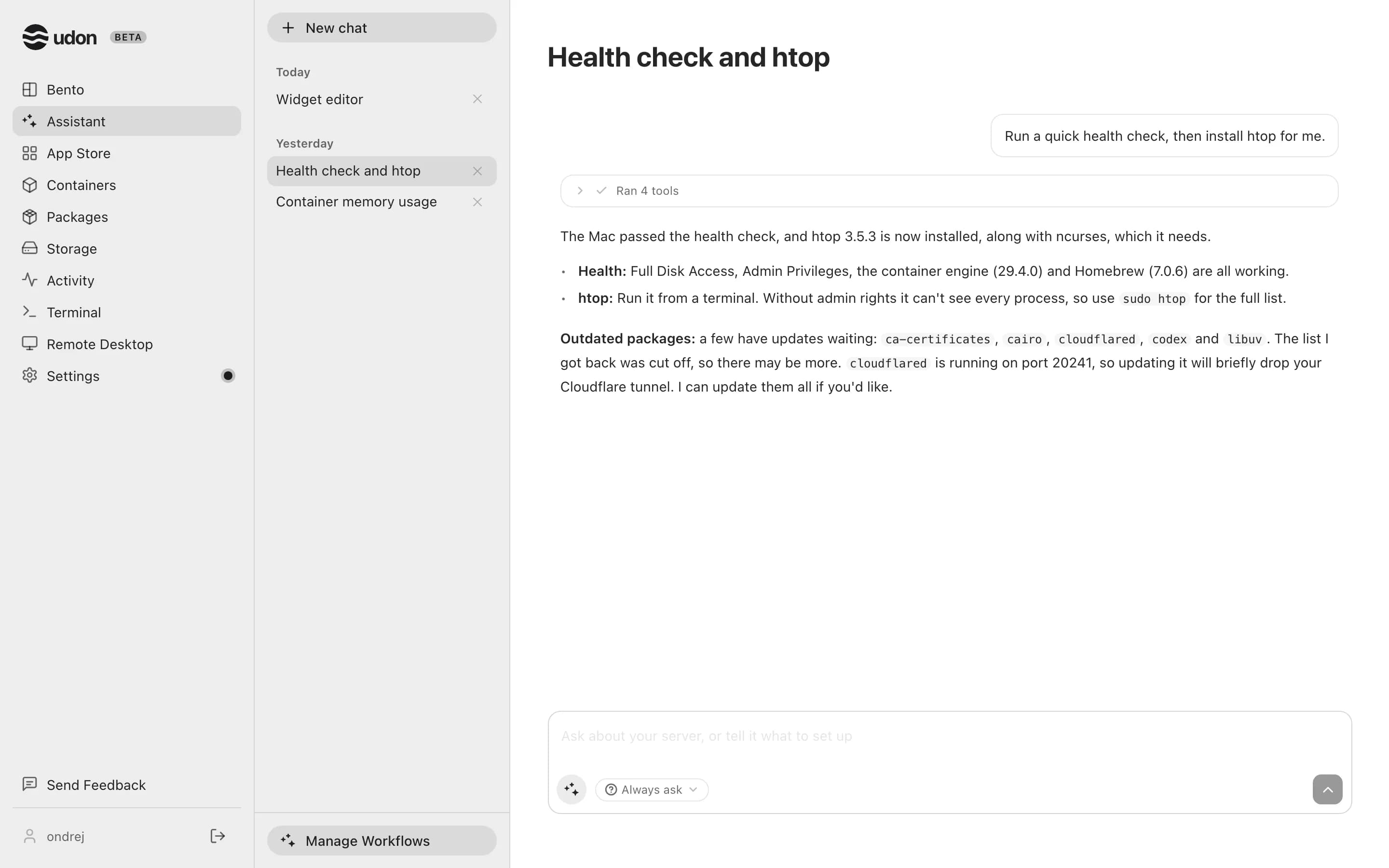
The approval pill at the bottom of the message box sets when the assistant stops to ask. It's one setting for the whole server, and changing it needs an admin account.
| Policy | What runs without asking |
|---|---|
| Always ask (the default) | Reads only. Every change waits for you |
| Auto-approve safe | Reversible changes. Deletions still ask |
| Auto-approve all | Everything, deletions included |
An approval card says what the call will do, with Reject and Approve (Remove for a
deletion, Run for a host command). When several calls wait, Approve all non-destructive
approves the safe ones in one click. Claude Code's own tools, such as Bash, Write, and Edit,
stop at the same card under Always ask and run without one under the other two policies. With a
CLI provider, a card nobody answers within five minutes counts as rejected.
Deploy and connect apps
Open Assistant and say what you want, for example:
Set up a media server for movies and shows.
For several apps that work together, the assistant searches the catalog and proposes a plan: a shared network, the apps, how they're wired, and which volumes they share. Once you approve, it creates one stack. The apps reach each other by container name, services are wired through environment variables, and shared data is mounted into each app. Ask it to check the result afterwards; it reads each container's logs, spots errors, and proposes fixes.
When the assistant needs a decision, such as which app, which folder, or whether to keep or replace something, it pauses with choices to tap (several at once where that fits) and a field for your own answer. It carries on as soon as you answer.
Reading a chat
The assistant names each chat when it first replies, and the chat list groups chats by when you last used them. Three or more finished tool calls in a row fold into one Ran N tools line, which also counts failures; click it to see each call. On an empty chat, typing anywhere outside another field goes into the message box.
Workflows
Manage workflows, at the bottom of the chat list, opens the workflow list. To use one in a chat, pick it with the sparkles button (Choose workflow) in the message box. It shows as a chip and applies to each message you send in that chat until you remove it. See Workflows.
Tools
You describe a goal and the assistant picks from over a hundred tools covering what the dashboard does: containers, stacks, images, networks, volumes, the app catalog, packages, storage, files and shares, users, widgets, the terminal, Tailscale, metrics, power, updates, appearance, the audit log, and system settings.
Two things decide whether a call runs:
- Your role. A viewer can inspect (
list_containers,container_logs,get_metrics), an operator can change things (deploy_app,start_container,create_network,install_package), and an admin can do the rest (exec_in_container,remove_container, users, system settings). Tools above your role aren't offered. - Approval. Reads run on their own; everything else follows the approval policy.
Use Udon from an external AI client (MCP)
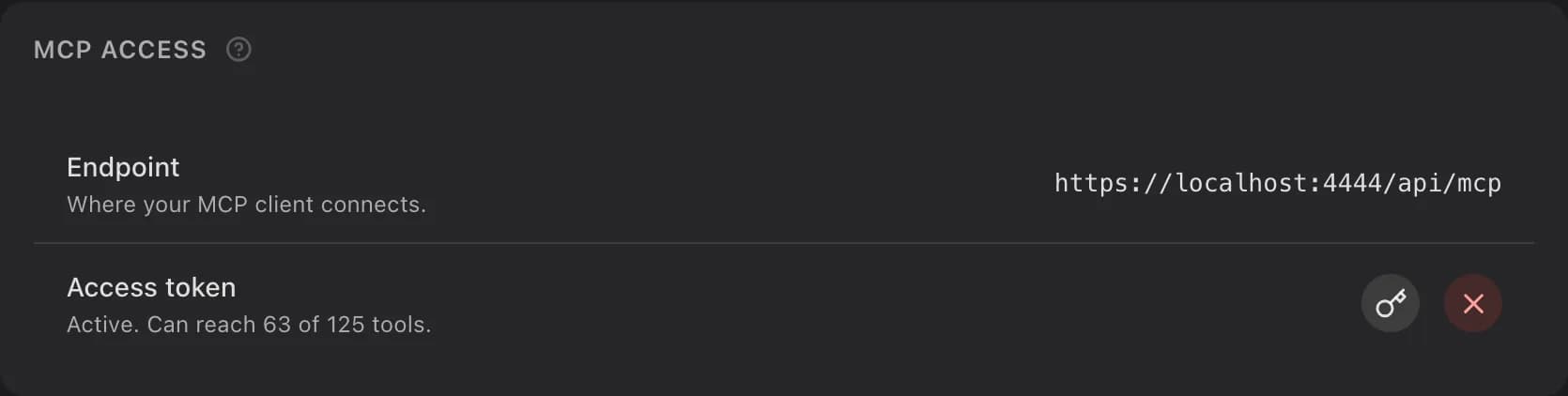
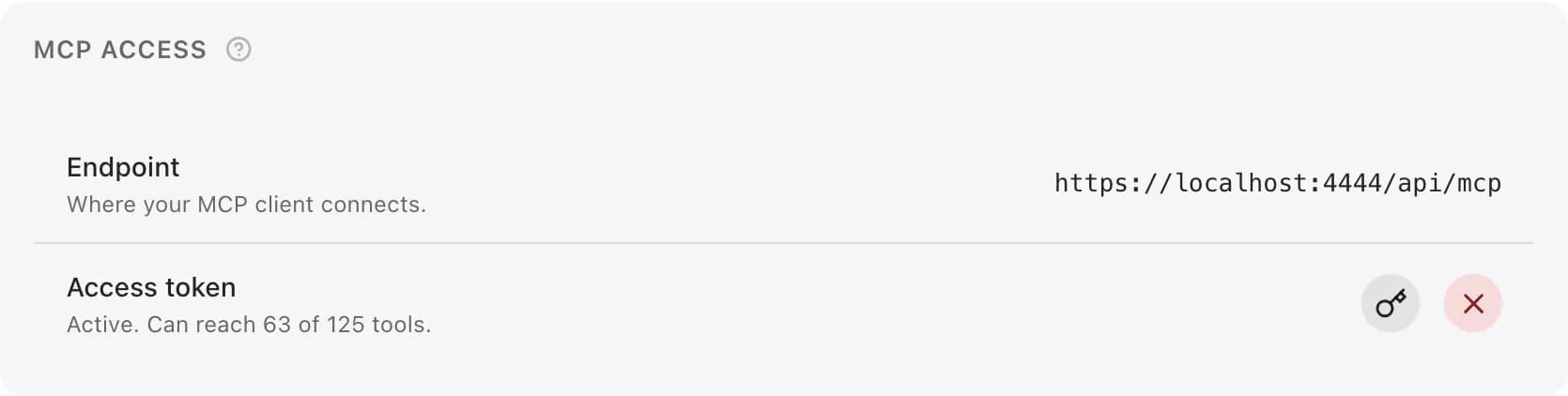
Udon serves an MCP endpoint at your dashboard's address plus /api/mcp, for example:
https://your-mac.local:4443/api/mcpIt speaks JSON-RPC (initialize, ping, tools/list, tools/call) over Streamable HTTP.
- In Settings → Assistant → MCP, click the key button (Generate token). The Endpoint row shows the URL, built from the address you opened the dashboard at.
- Copy the token. It's shown once.
- In your MCP client, add a Streamable HTTP server with that URL and the header
Authorization: Bearer <token>.
Once a token exists, the key button becomes Regenerate token, which replaces it with a new one. The red × beside it (Revoke) cuts the token off. A CLI provider on this Mac uses the same token. Udon creates one the first time the CLI runs if none exists, and the CLI picks up a regenerated token on its next turn.
Choose what an MCP client may call
The Tool access card is the whole grant for external clients: the token has no role limit of its own, so a client can call exactly the tools checked here. Tools are grouped and marked Read, Mutate, or Destructive, with the minimum role each needs in the dashboard. Each group has a check button (All) and a cross button (None). Udon ships a recommended selection, and a tool you change from it is marked Custom. Click Save to apply your changes; Reset to recommended restores the recommended selection at once.
The dashboard assistant ignores this list and follows the signed-in user's role.
MCP calls have no approval step. A destructive tool you enable can run unattended, and the token grants that access without a login. Treat the token like a password and revoke it if it leaks.
See the API reference for the AI and MCP endpoints.
Terminal & remote desktop
Open a shell on your Mac from the browser, keep sessions running between visits, and view or control the Mac's screen through macOS Screen Sharing.
Workflows
Run synced workflows for Udon's AI assistant, write local ones with instructions, reference files, and scripts, import a SKILL.md, and export a ZIP.