Workflows
Run synced workflows for Udon's AI assistant, write local ones with instructions, reference files, and scripts, import a SKILL.md, and export a ZIP.
Workflows give the AI assistant reusable instructions for a job, such as deploying a stack or checking disk usage. In Assistant, click Manage workflows at the bottom of the chat list to open Assistant Workflows.
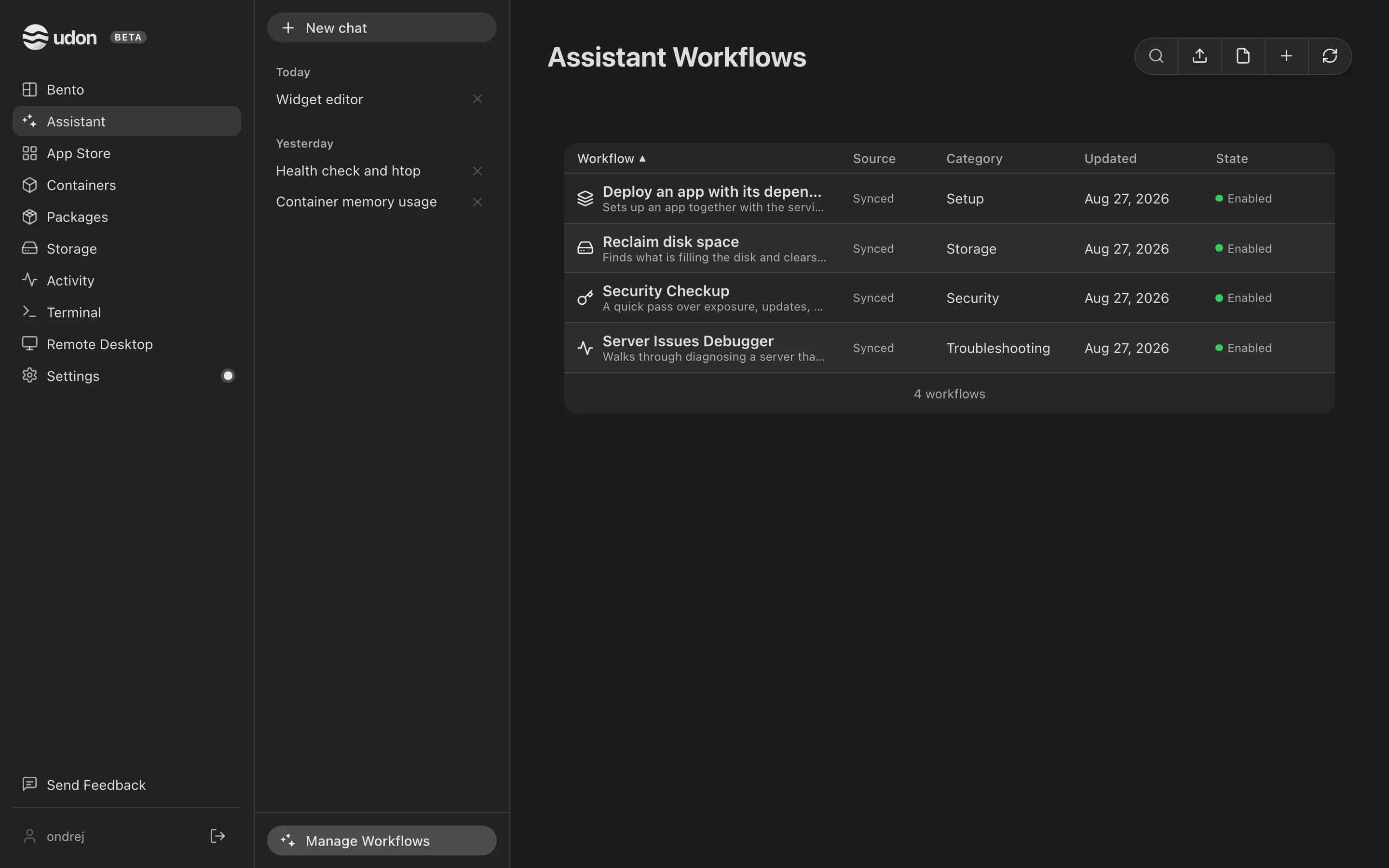
Synced workflows come from Udon's catalog, which Udon pulls every six hours. Local workflows live on this Mac and are shared by its users. Admins create and edit local workflows and can enable or disable either kind. A sync never touches local workflows or your enable choices.
Search with the magnifier in the toolbar, and click a column heading to sort; the order holds for the rest of the browser session. On a phone, a sort menu sits above the list and each row's actions are in its menu.
Run one
Click a workflow's play button (Run) to start a new chat with it. In any chat you can also pick one with the sparkles button (Choose workflow) in the message box. It shows as a chip and applies to each message you send in that chat until you remove it.
The assistant uses the workflow as it was when you sent the message, even if someone edits it while the chat waits for your approval. A disabled or deleted workflow gives an error, so you can pick another or remove the chip.
Workflow actions follow your role and the assistant's approval policy. Running a workflow's scripts also needs Host commands turned on and an admin account. Scripts run in a temporary copy and never change the saved workflow.
Create or edit a local workflow
Admins get four icon buttons in the toolbar: Import workflow folder, Import SKILL.md, New workflow, and Sync workflows, which pulls the catalog now. If a sync is already running, Udon says so instead of starting another.
- Click New workflow (+) and, in the side panel, enter a Name and the Instructions. Description, category, tags, and icon (a searchable picker) are optional.
- Under Supporting files, click the upload button (Add supporting files) and choose the folder that holds them; its subfolders are kept. Select a text file to view or edit it; binary files stay attached without an editor.
- Click Save.
The eye button (View workflow) opens an existing workflow. Synced workflows are read-only; to change one, choose Duplicate locally from the row's three-dot Actions menu. If another admin saves the same workflow first, the editor says so; click Reload latest version and make your change again.
The same menu holds Export ZIP, Disable or Enable (a disabled workflow can't be run), and, for a local workflow, Delete locally, which asks first.
Import and export
Import a standalone SKILL.md, or a folder with SKILL.md at its root. The import opens in the
editor, and Save adds it. SKILL.md must start with YAML frontmatter that has a name;
description, category, icon, and tags are optional, and fields Udon doesn't use are kept.
The Markdown after the frontmatter is the instructions. Reference files, scripts, and assets keep
their folder layout.
An import can hold up to 1 MiB of instructions, 16 MiB per supporting file, 64 MiB in total, 512
files including SKILL.md, and 16 folder levels. Links, paths outside the folder, and conflicting
file names are rejected. An interrupted save keeps its draft for a retry; unused drafts expire after
24 hours.
Export ZIP downloads SKILL.md and the supporting files.
AI Assistant & MCP
Connect Claude, GPT, a local model, or a coding CLI to deploy and debug apps by chat, and expose Udon's tools to external AI clients over MCP.
Activity
Watch CPU, memory, disk, network, and energy use on your Mac process by process from the browser, and quit or force quit anything that misbehaves.