Sign in & accounts
Create the first admin account, sign in to the Udon dashboard, turn on two-factor authentication, and add users with admin, operator, or viewer roles.
Every dashboard session belongs to an account, and every account has one of three roles: admin, operator, or viewer. These accounts are separate from the one macOS account that owns the Udon installation. Adding a dashboard user does not require another installation or license.
Create the first account
The first time you open Udon, it asks you to create the administrator account: a username and a password of at least 8 characters. The first account is always an admin, and creating it signs you in.
If the Mac hasn't granted Udon Admin Privileges and Full Disk Access yet, a full-screen prompt asks for them first (see Install). Then the setup wizard opens for this first account: display language, permissions, container engine, appearance, the assistant, and error reporting. A failed permission check keeps the next arrow disabled; finish the grants on the Mac and click Re-check. Permission troubleshooting explains a check that remains blocked. Accounts you add later skip the wizard. The last step shows your license: the days left to try Udon with Purchase Udon, or a thank-you once the Mac is licensed. If you can't move on, point at the dimmed arrow to see what the step needs. If the assistant's provider check fails, Skip for now turns the assistant off and moves on. Skip setup at the bottom leaves the rest to Settings, and an admin can run the wizard again from Settings → General → Run setup.
Sign in
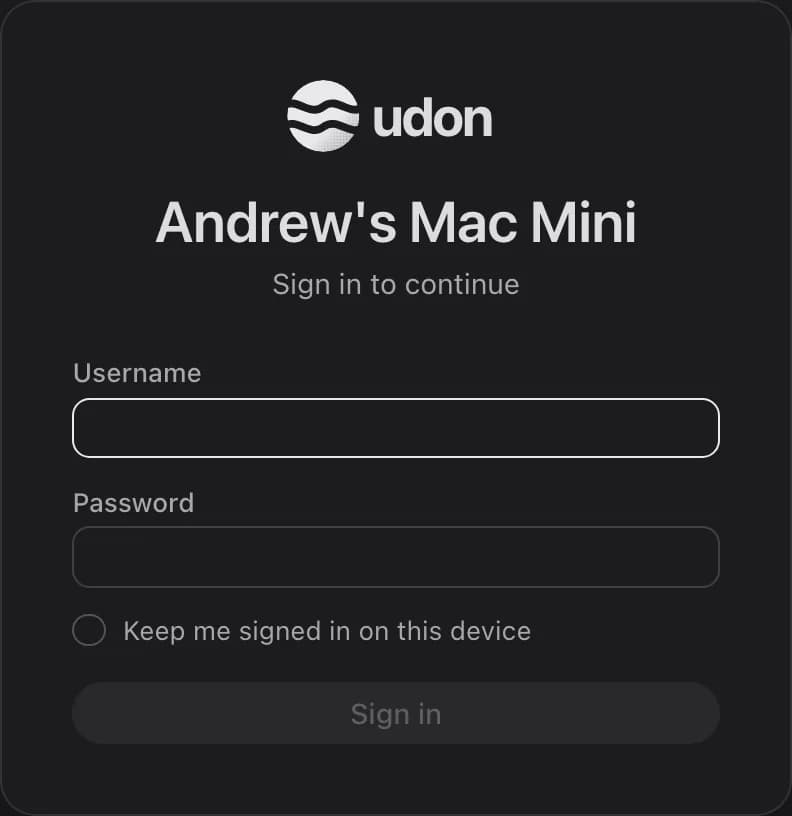
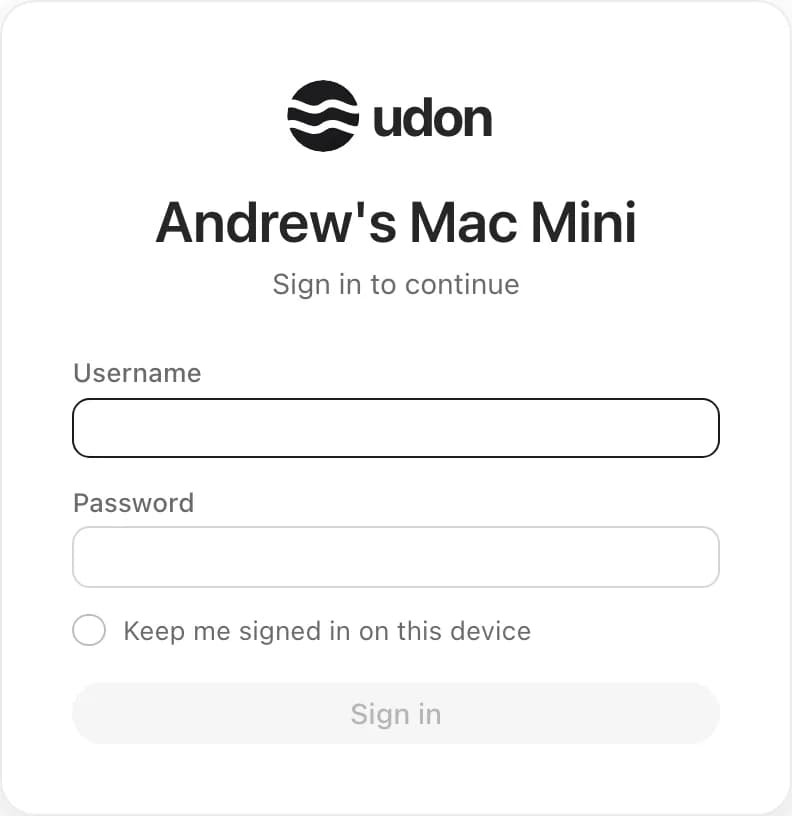
Sign in with your username and password. Keep me signed in on this device keeps you signed in for 30 days; without it, the session ends after 12 hours or when you close the browser. If the account uses two-factor authentication, a second step asks for the 6-digit code from your authenticator app, or a recovery code. Five failed attempts in a row lock that username for 60 seconds, even if the next attempt is right.
The sign-in screen's title is the Login headline set in Settings → Appearance → Login, or the server name when that's empty.
Your account
Settings → My Account holds your password, two-factor authentication, paired devices, and a This browser card. Changing your password needs the current one; it signs you out everywhere else and unpairs every phone.
To sign out, click the sign-out icon on the This browser card, or the one beside your username at the bottom of the sidebar. In a window about 900 pixels wide or narrower there's no sidebar, so use My Account. Signing out ends the session in this browser only.
Two-factor authentication
Two-factor authentication (2FA) adds a 6-digit code from an authenticator app to your password. Each person turns it on for their own account.


In Settings → My Account, turn on Require a code at sign-in in the Two-factor authentication card.
Scan the QR code with your authenticator app, or type in the key shown below it. Enter the 6-digit code the app shows and click Turn on.
Save the 10 recovery codes. Each works once if you lose the authenticator, and Udon won't show them again.
Turning 2FA off asks for your password. If someone loses both their authenticator and their recovery codes, an admin can choose Reset 2FA from that person's row in Settings → Users. They then sign in with a password alone until they set it up again.
Users and roles
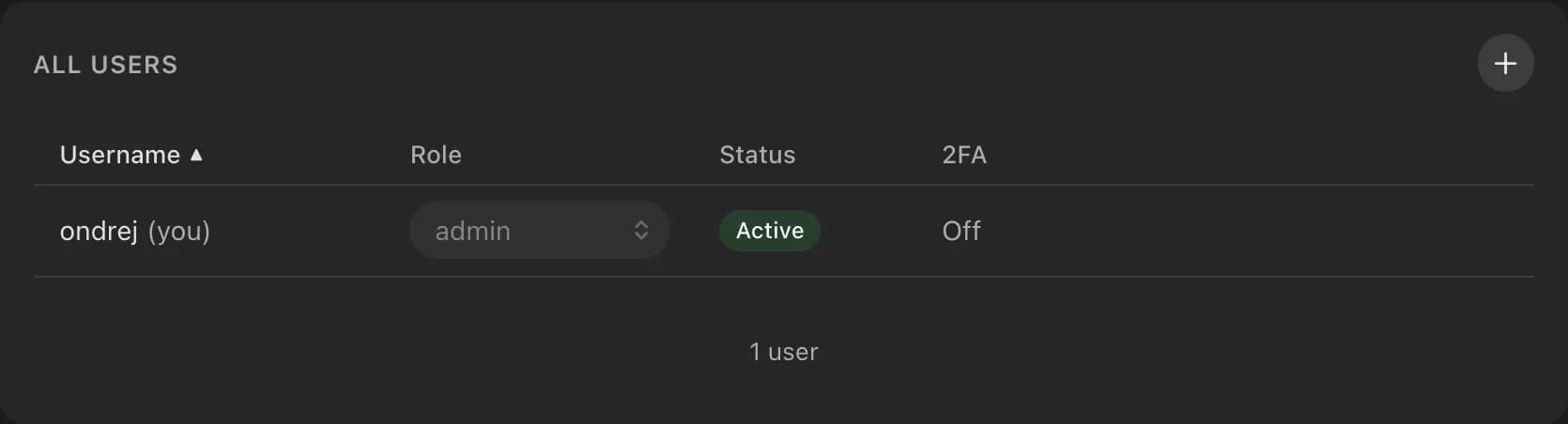
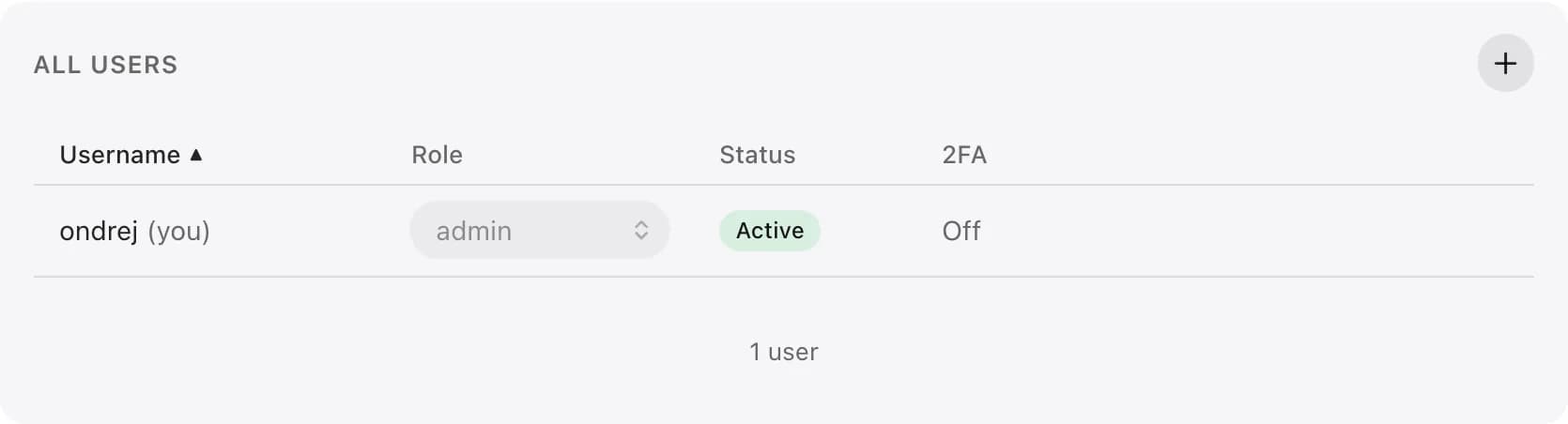
Settings → Users (admins only) lists every account with its role, status (Active or Disabled), and whether 2FA is on. Add someone with the + button (Add user) in the card header. Change a role from the dropdown in the Role column. The … menu at the end of a row renames the account, resets its password or 2FA, disables or enables it, or removes it. Disabling signs that person out at once, phones included.
Multi-user support is still in beta, so a single account is the safer setup.
| Role | Can do |
|---|---|
| Admin | Everything, including users, settings, Homebrew packages, the Mac's terminal and Remote Desktop, and uploading or editing files. |
| Operator | Start, stop, deploy, and update containers and apps, except options that reach the host. Browse and download files. |
| Viewer | Read-only: containers, logs, and metrics. No file browsing. |
Each role includes everything below it. The last admin can't be demoted, disabled, or removed, and no one can change their own role or disable or remove their own account. Operators and viewers see only their own account in Settings.