Packages
Browse, upgrade, and remove the Homebrew formulae and casks installed on your Mac from the browser, with a live terminal for every action.
Packages in the sidebar manages the Homebrew formulae and casks installed directly on the Mac, separate from anything running in a container.
Homebrew has to be installed first. Until it is, this page shows the install command instead of a table:
/bin/bash -c "$(curl -fsSL https://raw.githubusercontent.com/Homebrew/install/HEAD/install.sh)"Run it in Terminal on the Mac, or use the Package Manager step of the Welcome window, which opens Terminal on the same installer. Udon looks for Homebrew only when it starts, so afterwards choose Restart Udon under More in the menu bar panel, then reload this page.
Browse
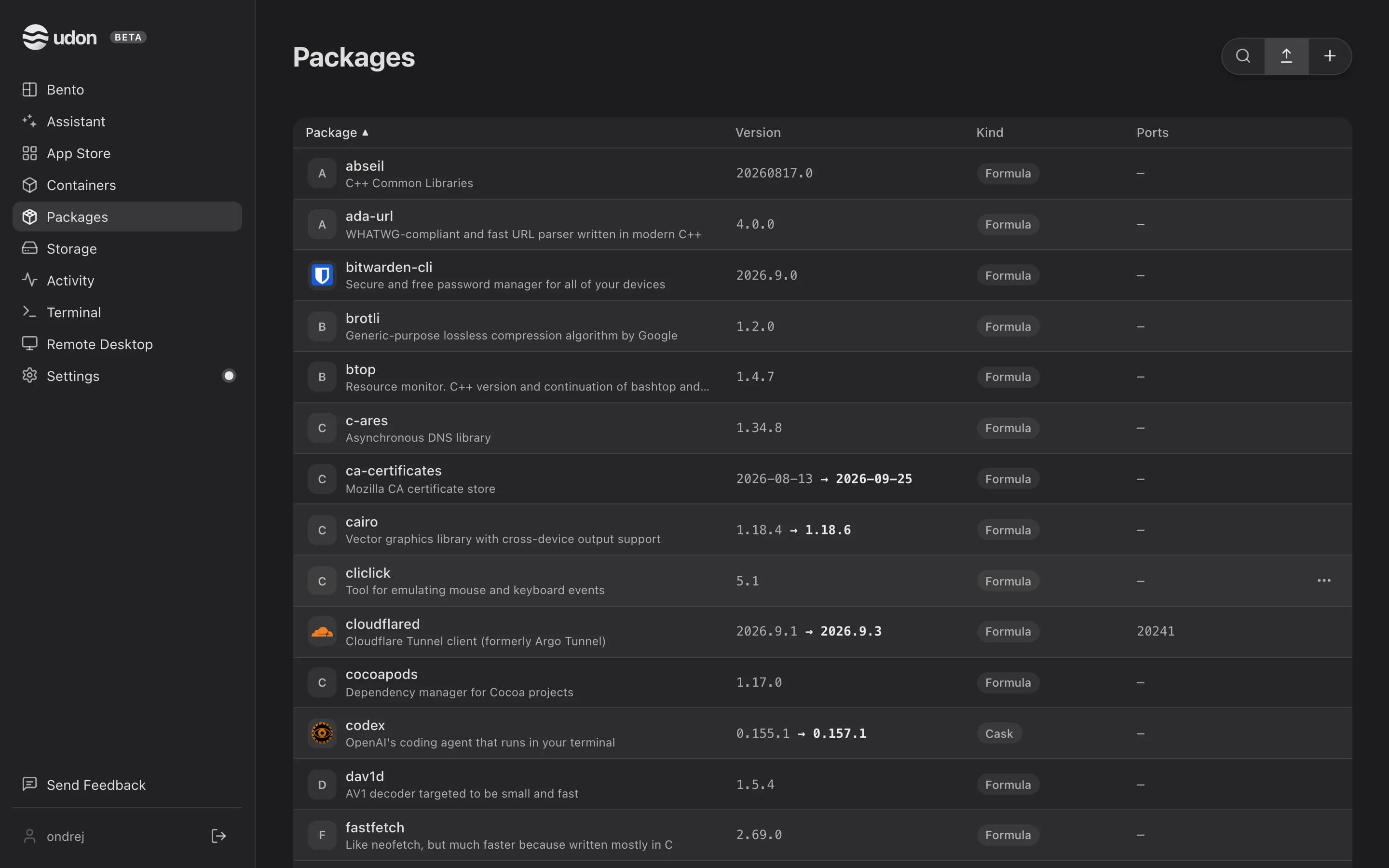
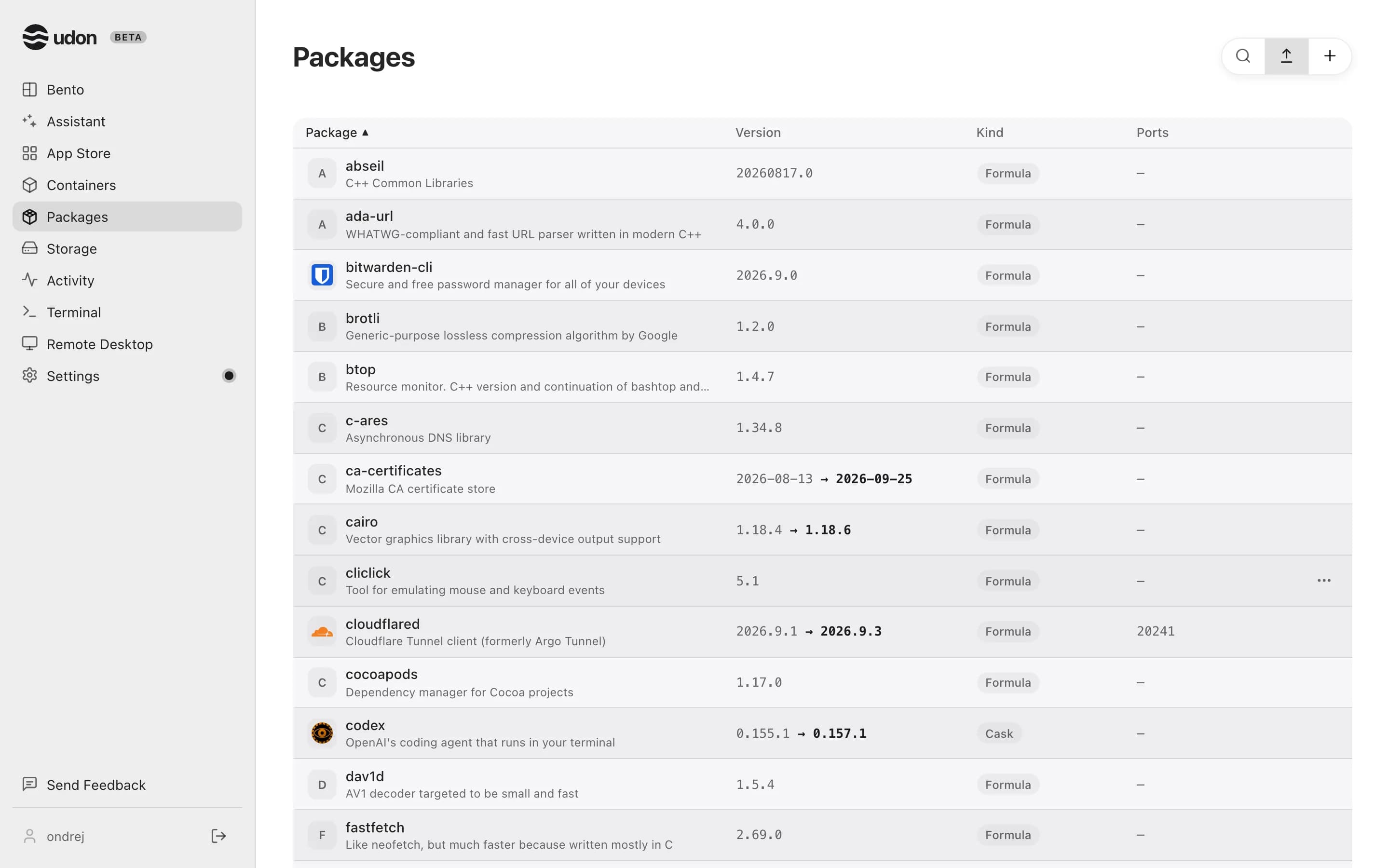
The table lists every installed formula and cask, 25 to a page: the package (icon, name, description), its version (with an arrow to the newer one when an upgrade is waiting), its kind (Formula or Cask), and any TCP ports it has open. Search filters by name as you type. Click a heading to sort; Udon keeps your sort until you close the browser tab.
Point at a row for its controls: an upgrade icon on outdated packages, and a … menu with Pin to top and Remove. Pinned packages stay at the top whatever the sort, and follow your account. Package logos follow Settings → Appearance → App icons.
On a phone, each package is a row; tap it for its version, kind, ports, and the Upgrade, Pin to top, and Remove buttons.
Install
Packages has no install dialog of its own. The + icon in the toolbar (Install package) takes you to the App Store's Homebrew tab; search for a formula or cask and install it there. Once it's on the Mac, it shows up here.
Update and remove
Installing, upgrading, and removing packages need an admin account.
- The upgrade icon on an outdated row runs
brew upgradefor that package. - The Update all icon in the toolbar, shown when something is outdated, opens a review of every
outdated package with its current and new version, all checked. Uncheck anything you'd rather
leave; confirming runs
brew upgradefor the packages still checked. - Remove, in a row's menu, uninstalls the package straight away. The terminal that opens is where you watch it, and where brew itself would ask.
To update Homebrew itself, use the Update chip that appears on its row in Settings → Health when a newer release is out.
The live terminal
Every install, upgrade, and removal opens the same dialog: a real terminal attached to the brew
process on the Mac. Output streams as it happens, and you can type into it, so a confirmation
prompt, a cask's sudo password, or Ctrl-C reach brew directly. The Close button stays
unavailable until the connection closes, then becomes Done. Closing the dialog early with × or
Escape, or losing the connection, leaves brew running on the Mac, so check the package list before
retrying. See A package install or update appears stuck.
App Store
Install self-hosted apps from Udon's catalog, any public Docker Hub image, or a Homebrew package on your Mac, with dependencies listed first.
Storage & files
Browse your Mac's volumes and disks, check SMART disk health, mount network shares, share folders over SMB, and upload or download files from the browser.