Deploy a container
Run a container from any image in the Run dialog with its ports, volumes, and environment variables, or build a Docker Compose stack in the Composer.
There are two ways to deploy: the Run dialog, for one container at a time on either engine, and the Composer, for a multi-service stack on OrbStack.
Run a container
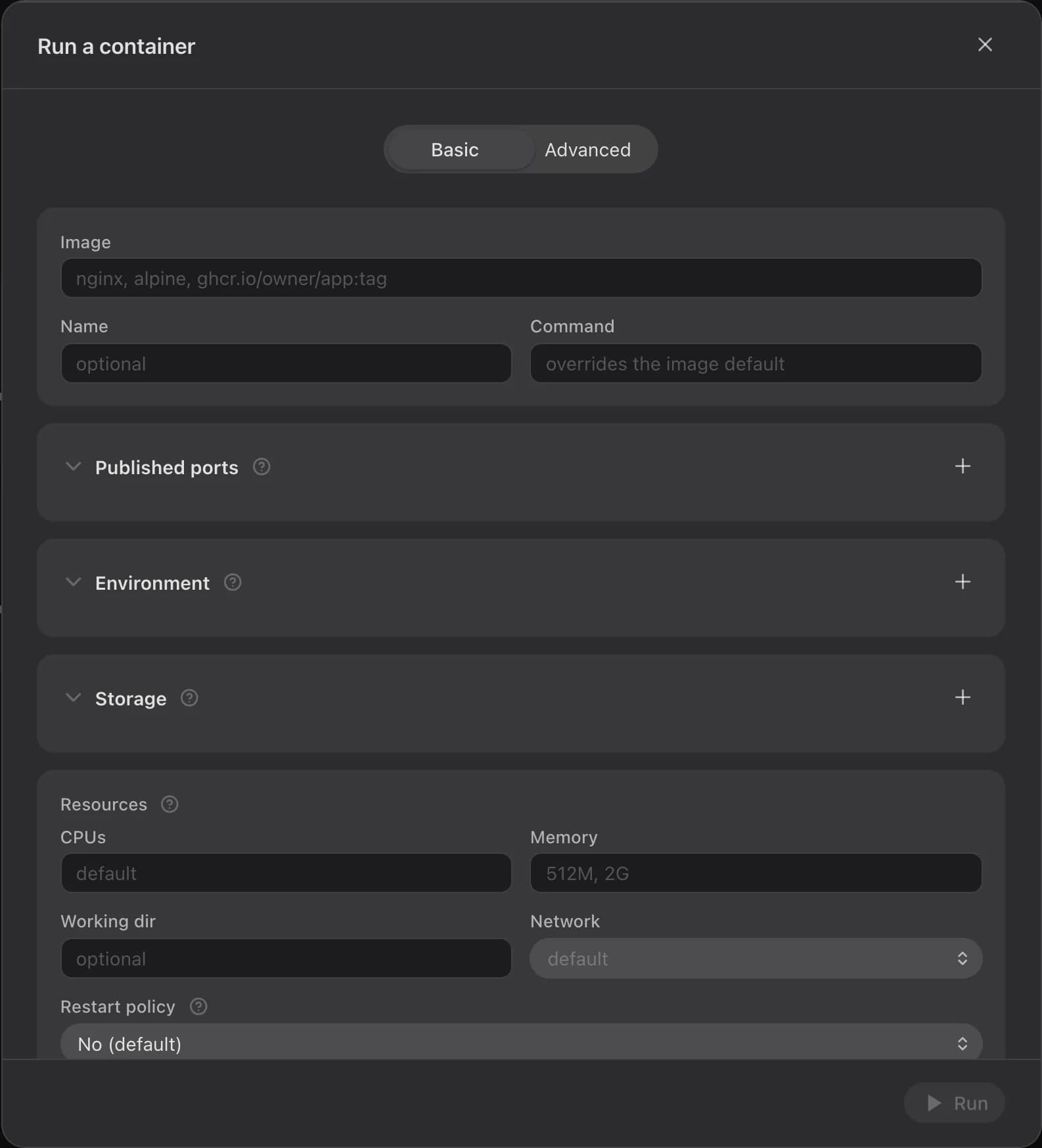
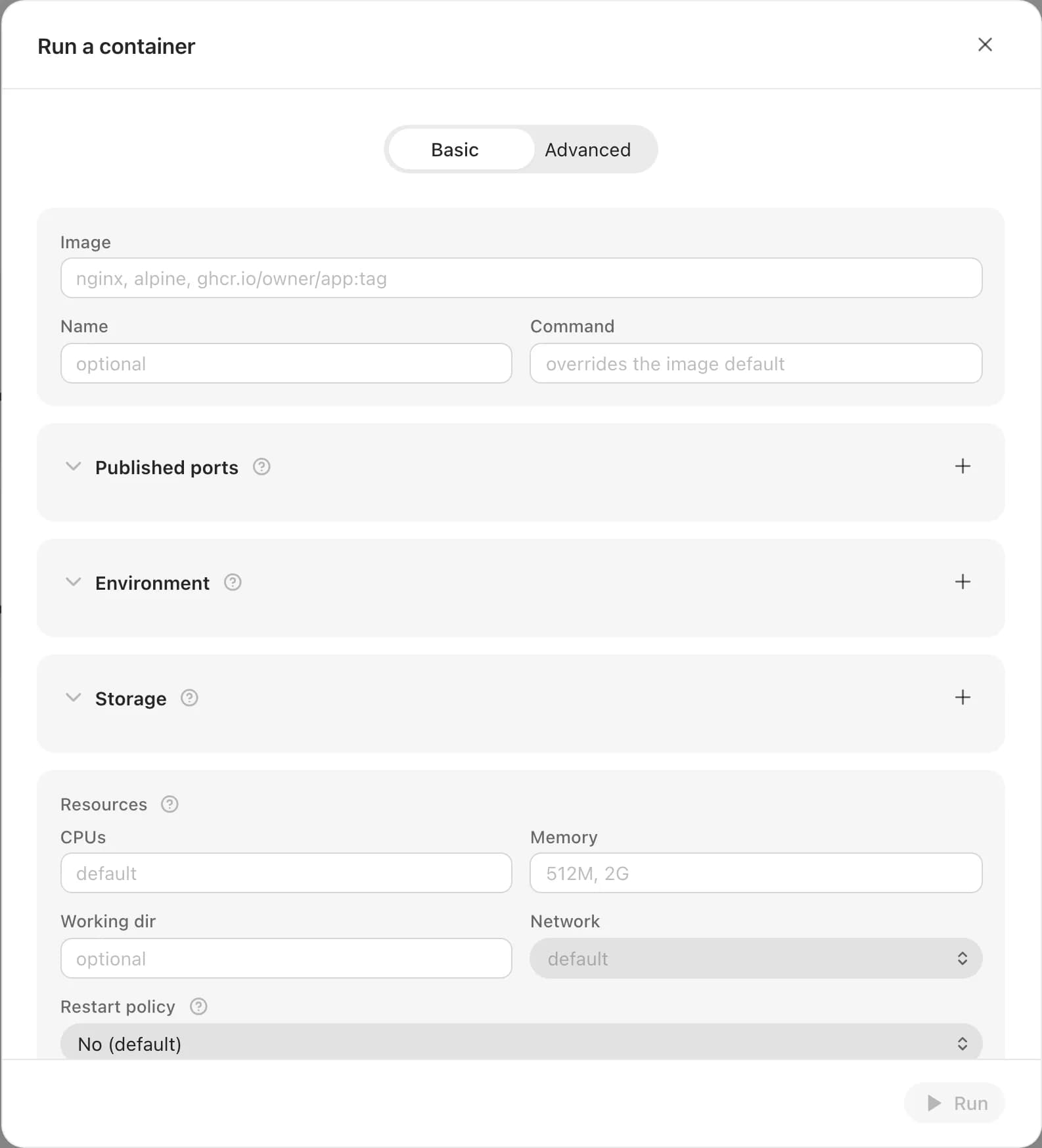
Open the Run dialog
On the Containers page, click the + in the toolbar. On OrbStack it opens a menu; pick Container. On Apple Container it opens Run a container directly.
Point it at an image
Enter an image reference, such as nginx:latest or ghcr.io/owner/app:tag; it's the only
required field. Name is optional. If the name matches an existing container, the button
becomes Reinstall: Udon pulls the image first, and only then removes the old container and
runs the new one. If the pull fails, the old container stays and the dialog shows the error.
Add ports, storage, and environment
Publish ports (host port to container port, tcp or udp), mount a host folder or a named volume under Storage, and set any environment variables the image needs.
Set resources and network
Optionally cap CPUs and memory, set a working directory, and pick a network. OrbStack also lets you set a restart policy.
Open Advanced for anything else
Entrypoint, user, raw mounts, capabilities, DNS, and more are on the Advanced tab; see the table below.
Run it
Click Run to stream the pull and start-up output. When the run succeeds, an Access section lists a LAN URL for each published TCP port, and Done closes the dialog. If the run fails or disconnects, the addresses stay hidden and Try again returns you to the form.
Fields
| Field | Notes |
|---|---|
| Image | Required. Registry, repo, tag, or digest in one string. |
| Name | Optional. An existing container's name switches Run to Reinstall. |
| Command | Overrides the image's command. Quote an argument that contains spaces. |
| Published ports | Host IP (blank publishes on every address), host port, container port, tcp or udp. |
| Environment | KEY=value pairs. |
| Storage | A host folder (with a folder picker) or a named volume, mounted at a path, optionally read-only. |
| CPUs, Memory, Working dir | CPUs is a whole number. Blank uses the engine's defaults. |
| Network | A defined network. OrbStack adds None (no networking) and sharing a running container's network. |
| Restart policy | OrbStack only: No, Unless stopped, Always, or On failure. |
| Read-only root filesystem | Mounts the container's own filesystem read-only. |
| Entrypoint | Overrides the image's ENTRYPOINT. |
| Hostname | OrbStack only. |
| User | A name or uid[:gid]. |
| UID, GID | Apple Container only; OrbStack folds these into User. |
| Mounts | Raw --mount strings, for anything Storage can't express. |
| tmpfs | In-memory mount paths. |
| Devices | Host device paths to pass through. OrbStack only. |
| Env files | Host paths to .env files. |
| Capabilities | Add or drop Linux capabilities. |
| DNS | Servers, search domains, and options; Apple Container can also skip DNS setup. |
| Remove automatically when it stops | Deletes the container once it exits (--rm). |
| Extra flags | Raw flags added to the run command, separated by spaces. |
Options that need an admin
Five kinds of option let a container reach past its sandbox, and each needs an admin: host
folder mounts and any raw --mount, device passthrough, extra flags, escalating capabilities
(ALL, SYS_ADMIN, NET_ADMIN, SYS_PTRACE, and others of that class), and sharing a host
namespace (--network host, --pid host, --ipc host, --userns host, or --privileged).
On OrbStack, the Run dialog and the assistant refuse host namespaces for everyone. On either
engine, nobody can mount the Mac's root folder.
The same rule covers the Run dialog, compose files in the Composer, and the AI assistant, and a refused single container names what tripped it. Editing, reinstalling, or updating a container that uses any of these (including through Update all) needs an admin too, whoever created it.
Editing a container
Edit, in a container's row menu or at the bottom of its detail panel, opens Edit <name> filled in from the running container. There's no in-place update: Save & recreate pulls the image, then removes the old container and runs the edited one. A few settings can't be read back from a running container, so check them before saving: Extra flags and Remove automatically when it stops come back blank, and on Apple Container so do tmpfs and the DNS switch.
Build a stack in the Composer
The Composer builds a multi-service compose stack on OrbStack. Apple Container has no compose, so there the page says so instead of showing the canvas. Open it from the toolbar's + menu (Stack), or with Edit in Composer on a stack's menu.
A new stack starts from Start blank (one nginx service) or Load a compose file, uploaded from your device or picked from the server. The header holds the stack name, a … menu with New compose and Import, the Visual and YAML switch, the save icon, and Deploy.
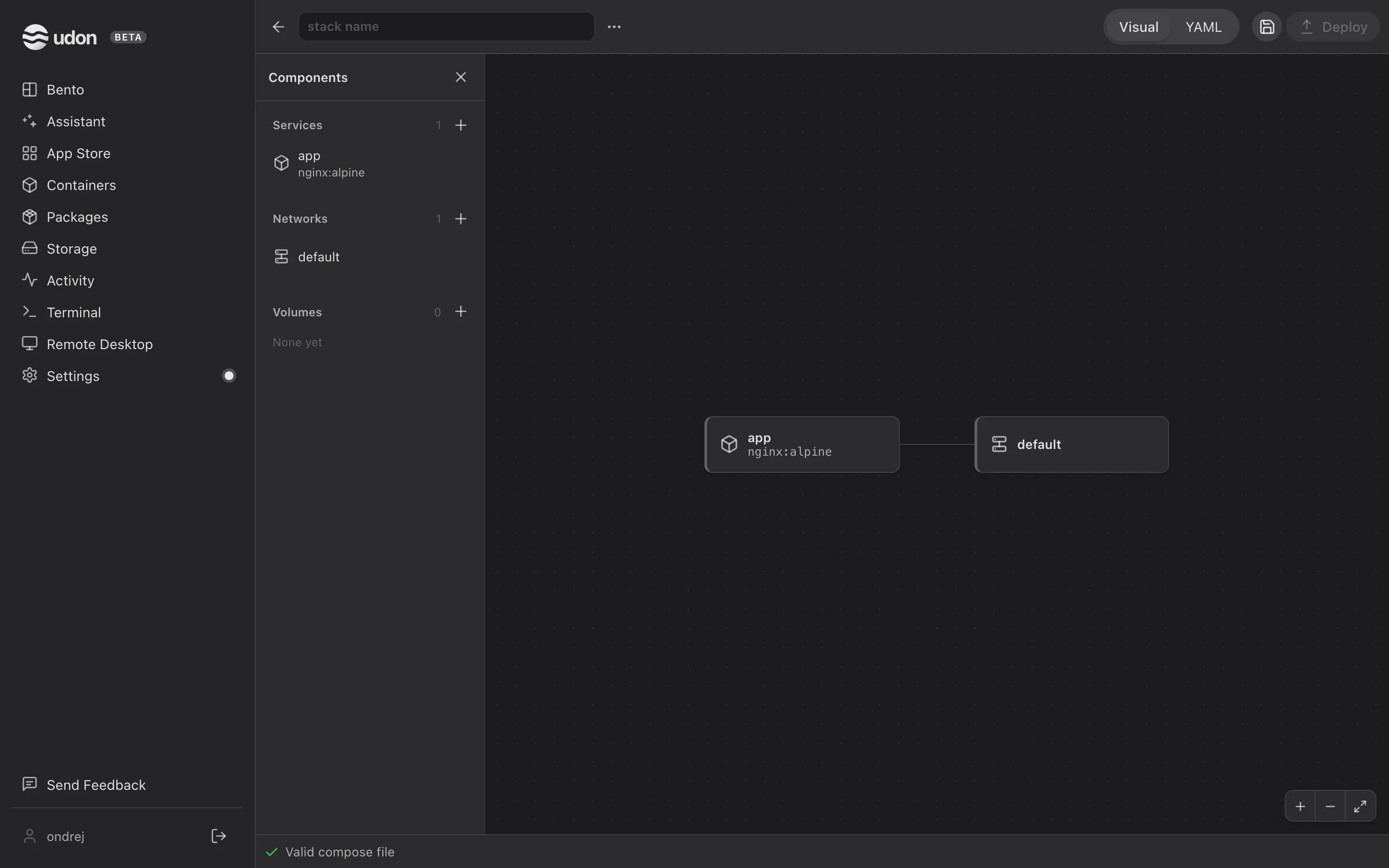
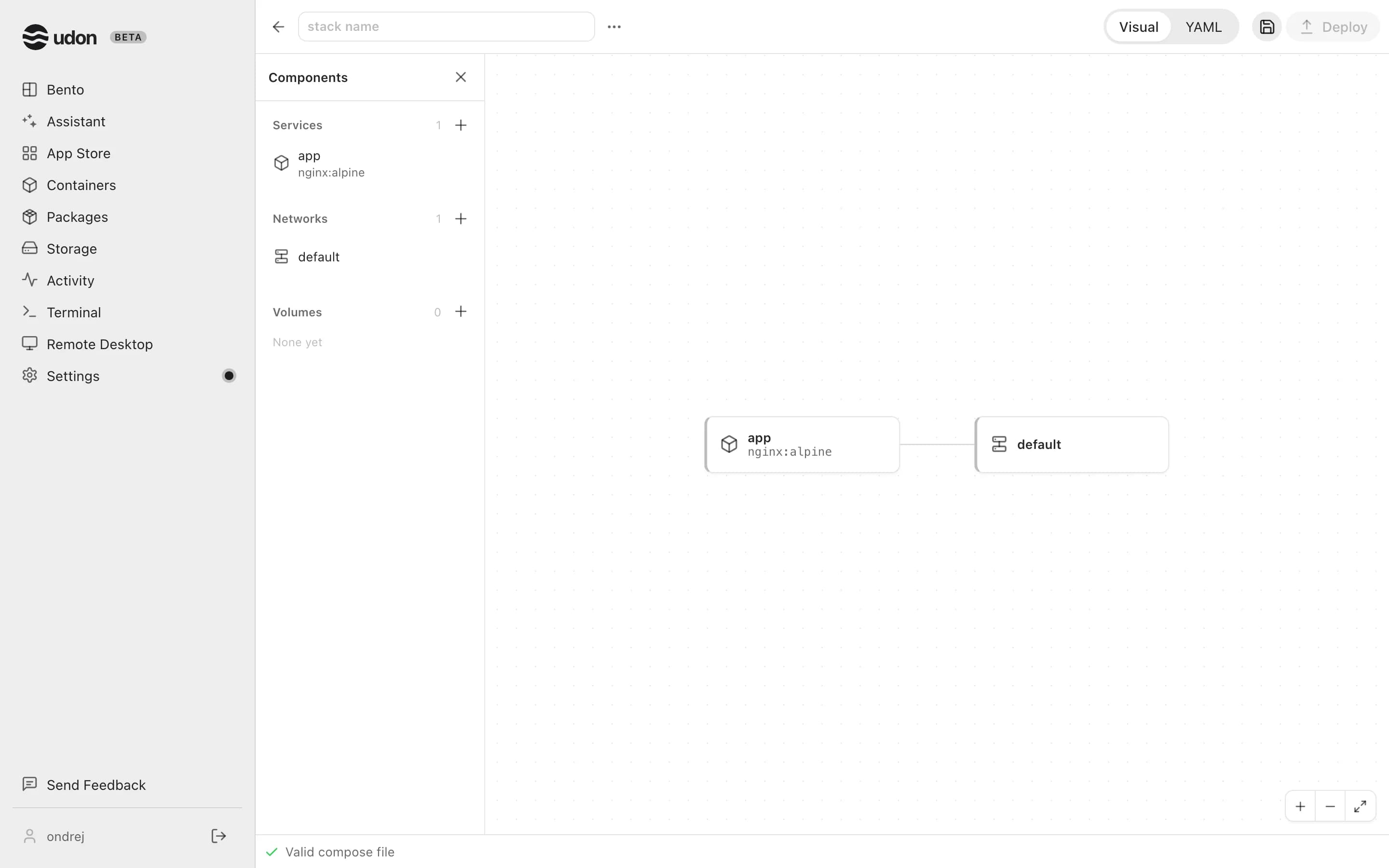
- In Visual, the Components panel lists services, networks, and volumes, each group with a +. A new service starts from a Docker Hub image search; a network can be new or an existing one. When the panel is closed, the Components icon at the canvas's top-left opens it.
- On the canvas, drag from a service to a network to connect them, or to another service to make it a dependency. Select a component to edit its settings on the right, from image and ports to health checks and resource limits.
- YAML edits the same document, comments and unsupported fields included, with Undo and Redo icons at the right of the status bar. The status bar also says whether the file is valid.
- The save icon writes a new stack's compose file to a folder you choose on the server, or saves an existing stack's file without redeploying. Deploy brings the stack up once it has a name and the file checks out. An existing stack shows Redeploy.
Once it's running, manage the stack from the Stacks page.
Containers
Run, update, and remove containers on your Mac with Apple's container engine or OrbStack, and open each one's logs, shell, and resource stats.
Stacks
Group related containers into a stack, a Docker Compose project on OrbStack or an Udon group on Apple Container, and start, stop, or restart it as one.