Verify Full Disk Access
Recover when Udon still reports missing Full Disk Access after you turn on its System Settings switch.
If the dashboard stays on Udon needs Full Disk Access, open the Udon menu bar app and expand Permissions. Click Full Disk Access. Udon asks macOS to add its signed app as Udon in the Full Disk Access list and opens that pane. Turn on Udon. If macOS asks, choose Quit & Reopen so the changed grant takes effect.
Udon checks at startup and retries every 10 seconds while macOS refuses access. If the running daemon kept an old denial after you grant access, Udon restarts it once. The check runs on the Mac and account that installed Udon.
After access is confirmed, Udon stops checking protected files in the background. If you later change the grant in System Settings, click the circular-arrow button (Recheck) on the System Permissions card in Settings → Health, or the circular arrow beside Permissions in the menu bar. If the permission screen is already open, its button is Check again. Each action requests a fresh check from both processes.
Sometimes the check can't tell either way: macOS neither opens the protected file nor refuses it. Udon keeps working, shows a Full Disk Access warning in Settings → Health, and doesn't retry on its own. Click Recheck there after you change the switch.
If Udon does not recover
Keep System Settings open briefly, then use the circular arrow beside Permissions to request a
fresh check. If Udon does not appear in the list, click Quit in the menu bar panel, then
run /Applications/Udon.app/Contents/MacOS/udond start in Terminal to bring Udon back. Click
Full Disk Access again and wait for the list to refresh. Setup waits while either the daemon
or the menu bar reports a refusal.
If the two processes disagree after a refresh, use More → Restart Udon in the menu bar, then check again. Keep the single Udon app entry as the permission target.
If it remains blocked, open Show check details on the dashboard permission screen. It shows the running daemon's path and the protected files macOS refused it.
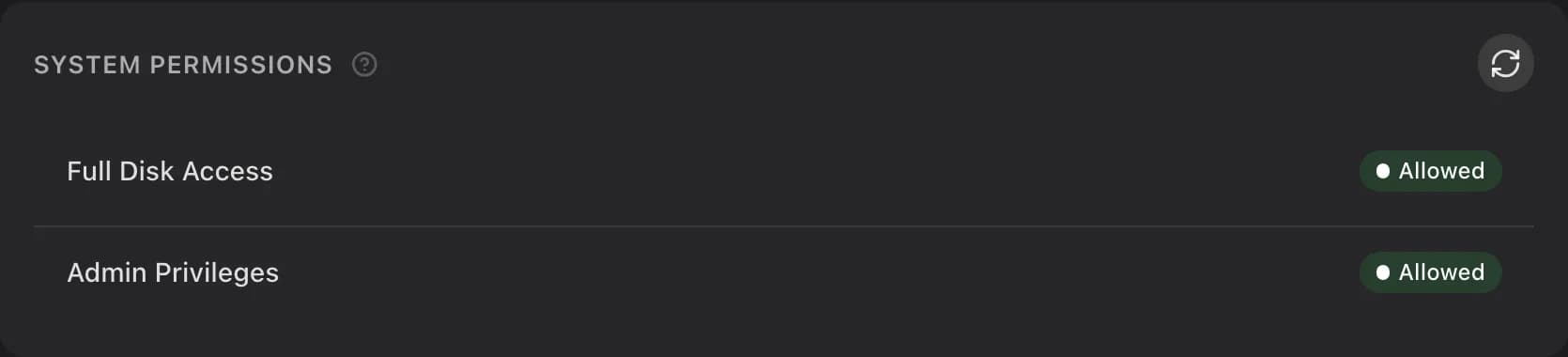
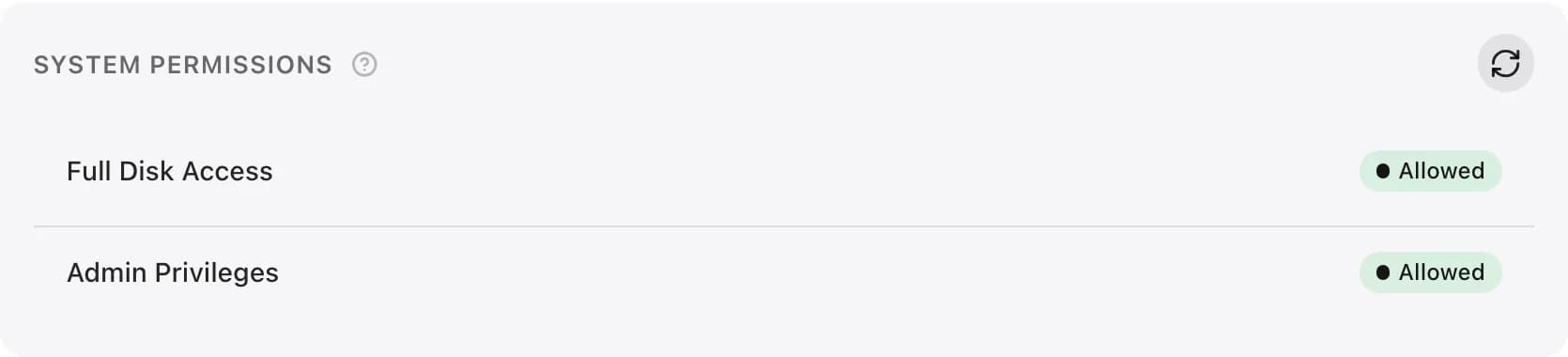
If the screen asks for Admin Privileges, click Permissions → Admin Privileges in the menu bar and approve the administrator prompt on the Mac. That is a separate grant; see Menu bar permissions.
Check details
You can also read the permission status while signed in: open /api/system/privileged on
the same address you use for the dashboard. For a browser on the Udon Mac, that might be
https://localhost:4443/api/system/privileged. Use your configured port if you changed it.
| Field | What to check |
|---|---|
daemonExecutable | The running executable, for diagnosis. The System Settings permission target is the containing Udon app. |
fullDiskAccess | Whether the daemon's protected-file check succeeded. |
fullDiskAccessStatus | granted, denied, or inconclusive. |
needsFullDiskAccess | Whether a macOS refusal is blocking the dashboard. An inconclusive result never blocks. |
fullDiskAccessDetail | The paths and errors from a failed check. A message that Udon could not verify access is inconclusive; it does not mean macOS denied the grant. |
To check both processes, open /api/setup/readiness at the same dashboard address while signed
in. In components, fullDiskAccess describes the daemon and menuBarFullDiskAccess describes
the menu bar. error is a refusal and holds setup. warning means the check couldn't verify
access, or the menu bar hasn't reported yet. Include the component's detail when reporting a
failure.
A “running” result from udond status, an open port, or /health returning ok confirms that
the daemon started. Setup readiness checks the required components and grants.
/api/system/privileged reports the cached result; use the refresh controls above for a fresh
check. A WebSocket error such as “Inappropriate operation for state” does not by itself identify
a Full Disk Access failure.
If Udon is still blocked, email [email protected] with your Udon and macOS
versions, the permission-check details, and relevant lines from
~/Library/Application Support/sh.udon/udond.log. Mention whether you used the official installer
or a custom service. Review logs for private information before sending.