Containers
Run, update, and remove containers on your Mac with Apple's container engine or OrbStack, and open each one's logs, shell, and resource stats.
The Containers page runs, updates, and removes containers on the Mac and shows their logs and
stats. Udon drives two engines, Apple's container and OrbStack (in beta); pick the active one in
Settings → Containers. If the active engine isn't installed, the page
says so ("Apple Container is not installed on this Mac"); if it's installed but not answering, the
page says it is not running. On a Mac with neither engine, the Containers step of the
Welcome window installs Apple Container.
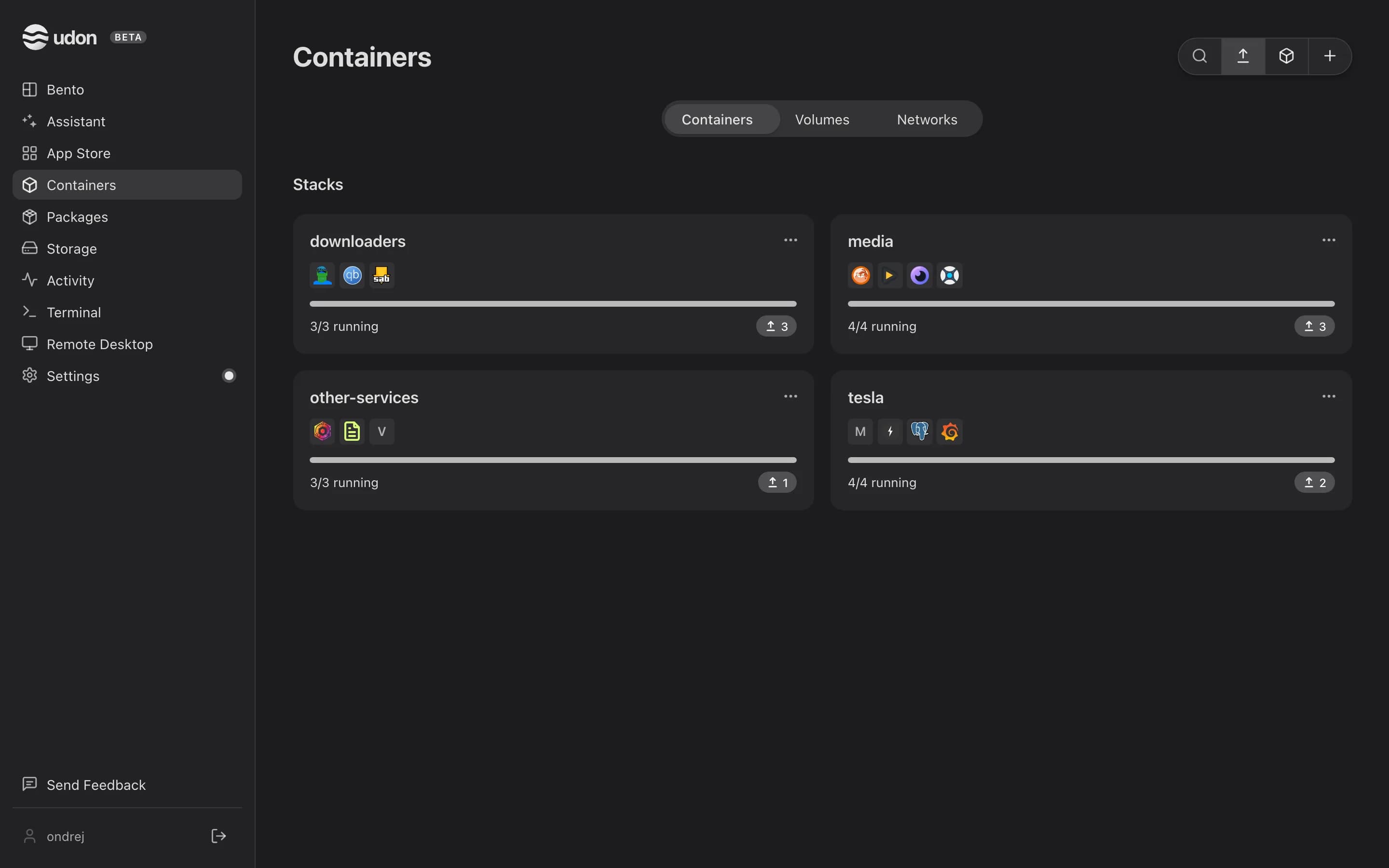
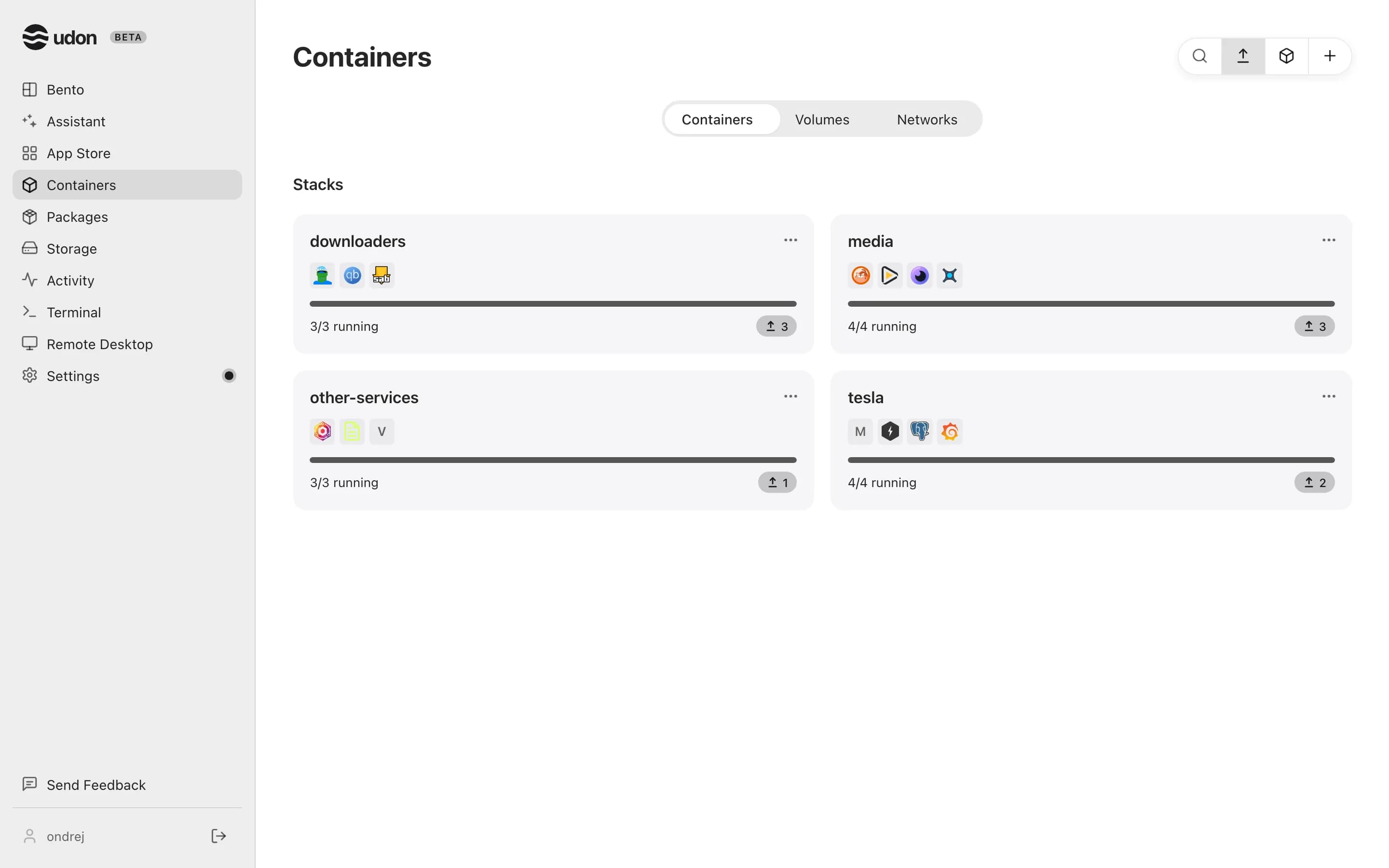
The container list
The page has three tabs: Containers, Volumes, and Networks. The Containers tab lists every container with its name and image, a state dot, its IP, and its published ports. Search matches a name or an image. Click the Name, State, or IP heading to sort; Udon keeps your sort until you close the browser tab. A container built for Intel runs under Rosetta and carries a Rosetta chip.
Each row's … menu opens the container's details, logs, terminal, URL, and mounted files, and starts, stops, restarts, updates, edits, pins, groups (Apple Container), or removes it. Viewers can look; changes need an operator, and the terminal needs an admin.
On Volumes, a row's menu opens the volume's location or deletes it, unless a running container uses it. On Networks, admins add a network with + (optionally isolated from the internet); the default networks can't be deleted. Drag a heading's edge on these tables to resize a column. On a phone, every tab is a list of rows; tap one for its details.
Run, stop, and remove
The toolbar's + starts something new. On OrbStack it's a menu with Container and Stack; on Apple Container it opens the Run dialog. See Deploy a container. Start, stop, and restart a container from its row menu or its detail panel. Removing one asks first, then stops and deletes it. Named volumes are never deleted with it.
About every six hours, Udon checks each image for a newer build and marks an outdated container with an update chip beside its name. Update, in the row menu or the detail panel, pulls the new image and recreates the container under the same name, keeping its volumes and settings; if the pull fails, the old container keeps running. The Update all icon in the toolbar opens a review of every outdated container, all checked. Confirm, and a live log updates them one at a time, so one failure doesn't stop the rest.
Logs
Open a container and switch to Logs. A running container's log follows new output as it arrives; the pause icon in the pane stops following, and the play icon (Follow) picks it up again. For a stopped container, the refresh icon fetches the latest output.
Shell
Open a terminal inside a running container with Open terminal in its row menu, or Console in its detail panel. Either opens a new session on the Terminal page.
Stats
Stats charts CPU, memory, network, and block I/O over 5 minutes, 15 minutes, 1 hour, or 24 hours; point at a chart to read a value. Udon samples every running container while a container's detail panel is open, and keeps a day of samples across daemon restarts, so the charts cover the times someone was watching.
Detail panel
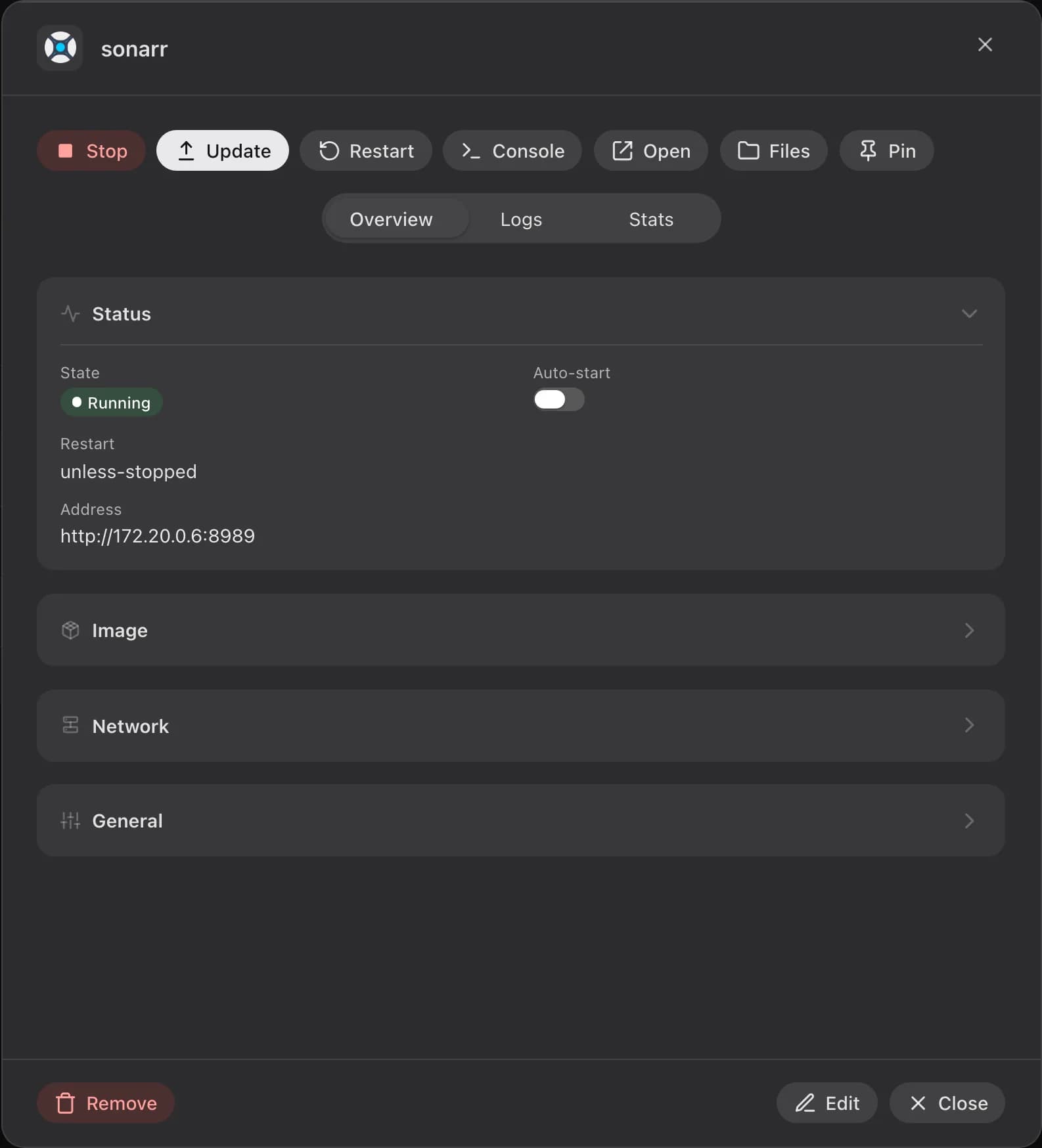
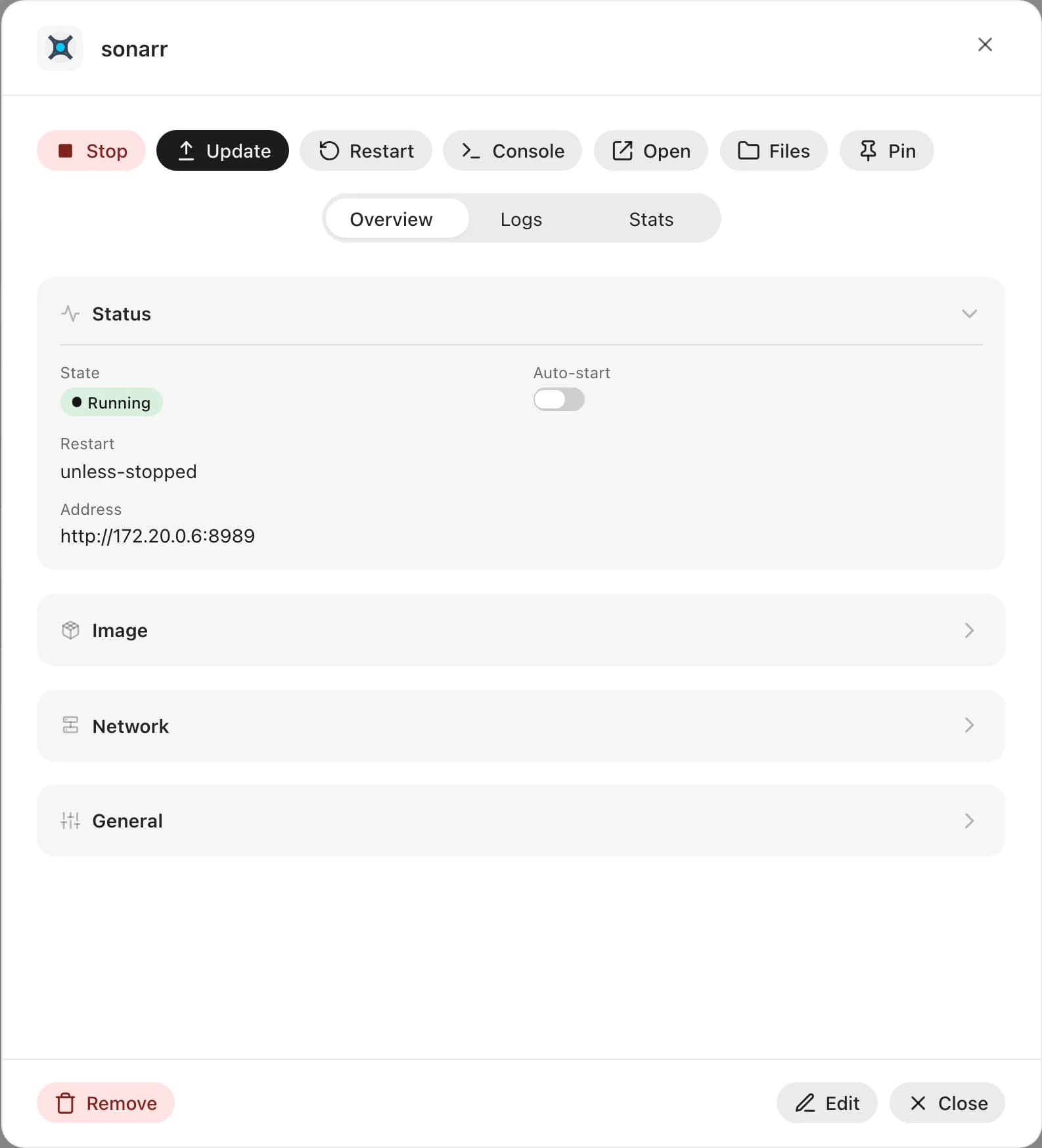
Click a container's name to open its detail panel. Its toolbar starts, stops, updates, and restarts the container, opens a console or its URL, browses the host folders it mounts (Files), pins it to the dashboard, and, on Apple Container, adds it to a group. Edit, at the bottom of the panel, reopens the Run dialog with the container's current settings (see Editing a container). Overview lists its status, image, network, and details, with an Auto-start switch and a custom icon.
Images
The Images icon in the toolbar opens a panel of every pulled image. Pull a new one by reference, see which containers use each image, and delete the ones no running container needs.
Custom widgets
Build a custom dashboard tile in the Widget Editor from one HTML file, fed by a shell command or HTTP request, with its own refresh interval and buttons.
Deploy a container
Run a container from any image in the Run dialog with its ports, volumes, and environment variables, or build a Docker Compose stack in the Composer.