Custom widgets
Build a custom dashboard tile in the Widget Editor from one HTML file, fed by a shell command or HTTP request, with its own refresh interval and buttons.
A custom widget is one HTML file that renders in a sandboxed tile on the dashboard. A JSON block in
the file, <script type="udon/widget">, declares where its data comes from, how often it
refreshes, and what its buttons do. Only admins build and edit widgets. Every account sees the
tile, and operators and admins can use its buttons.
Open the editor
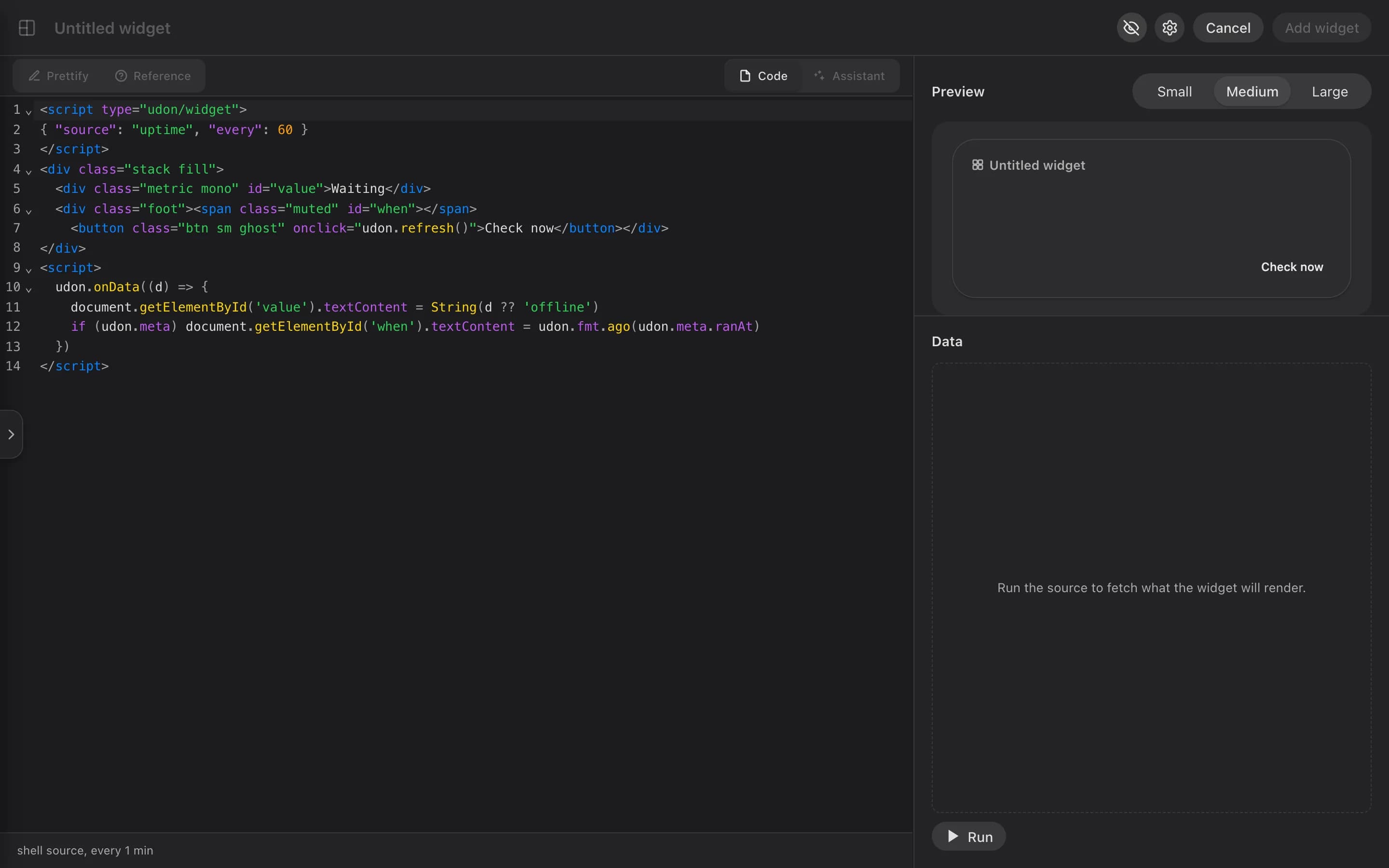
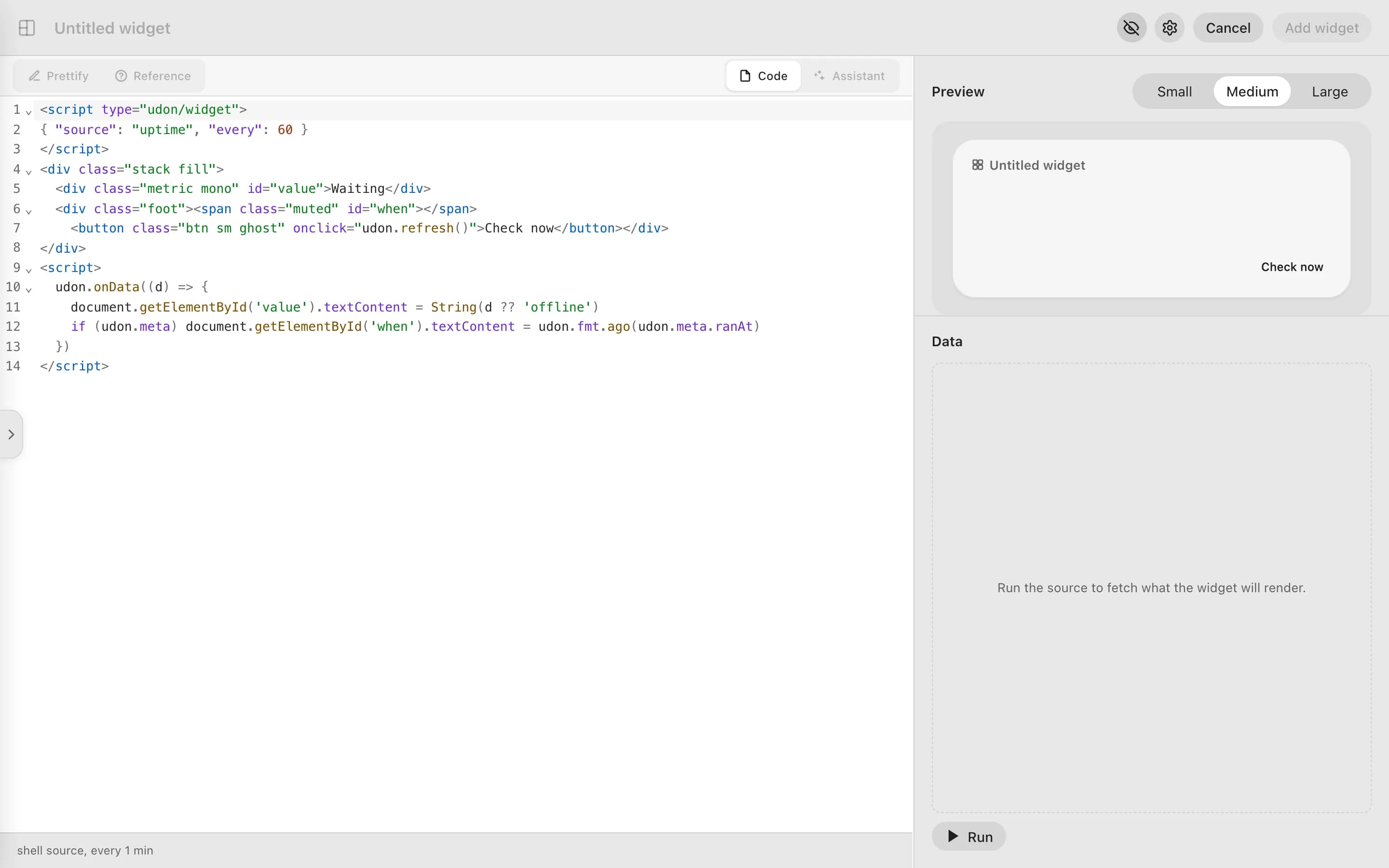
On the dashboard, enter edit mode and click New widget at the bottom of the Tile Library, or
click the pencil badge on a custom tile. A new widget starts from a small example that runs
uptime. Name it in the top bar, then open Widget properties (the gear icon) to choose the
sizes it offers (Small, Medium, Large), its icon, and its secrets. The same popover sums up the
source, refresh, and actions the file declares.
Declare a data source
<script type="udon/widget">
{ "source": "uptime", "every": 60 }
</script>
The command runs on the Mac as the user Udon runs as, and gets 10 seconds and 8 KB of output. Its
PATH covers /usr/local/bin, /opt/homebrew/bin, and the system folders, and it doesn't run in
your home folder, so give full paths for anything else. To pass vault secrets, use the object form,
"source": { "command": "...", "secrets": ["api-key"] }; each secret arrives as an environment
variable such as UDON_SECRET_API_KEY.
Udon runs the source again once its result is older than every seconds (60 by default, 30 at
least) and a dashboard is open to show it.
Render the data and add buttons
udon.onData hands you each result: parsed JSON when the output is JSON, trimmed text otherwise.
Format it with udon.fmt (bytes, kib, percent, number, duration, ago), read when it
ran from udon.meta.ranAt, and fetch it again with udon.refresh(). Udon's CSS classes for
stats, lists, gauges, and status pills are built in, so most widgets need no <style> block.
<div class="metric mono" id="value">Waiting</div>
<script>
  udon.onData((d) => {
    document.getElementById('value').textContent = String(d ?? 'offline')
  })
</script>
Buttons call named actions with udon.run('id'). confirm asks before the command runs. An action
with "input": true takes text from the widget, as in udon.run('note', text), and the command
reads it as UDON_INPUT:
"actions": {
  "restart": { "command": "container stop myapp && container start myapp", "label": "Restart", "confirm": "Restart myapp?" },
  "note": { "command": "echo \"$UDON_INPUT\" >> \"$HOME/notes.txt\"", "label": "Add note", "input": true }
}
Preview, run, and save
The preview on the right shows the tile at its size. Below it, the Data panel shows the last run and a Run button that fetches fresh output while you work. Run gives a command no vault secrets, and runs an HTTP source only after you save. If a run fails, the reason shows under the code; click Run again to retry. Prettify reformats the file. Add widget (Save changes for an existing one) saves it and adds it to the end of the last page.
On the dashboard, a tile whose last run failed shows an error or timed out chip with the reason in its tooltip. To delete a widget for everyone, an admin moves it to the Tile Library and clicks the × on its entry.
Secrets vault
Keep credentials in the vault (Widget properties → Secrets), not in the command or URL. A
saved value is never shown again, and every run replaces it with [secret] in its output. If a
secret a widget needs is missing, the widget doesn't run and names the missing secret.
Samples and reference
Reference opens a side panel with two tabs. Samples holds eight complete widgets (Public IP, Disk space, Uptime and load, Container control, Service health, Speed test, Log tail, World clock); click one to open it in the editor. Reference lists the CSS classes every widget can use.
Ask the AI assistant
If the AI assistant is on, switch the editor from Code to Assistant, or press Cmd+K in the editor for an inline prompt. The assistant proposes a whole new file as a diff: Accept applies it, and Reject keeps your widget as it was.
The dashboard
Arrange live dashboard tiles, pin container apps, set a wallpaper and theme, restart the Mac, and search containers, settings, and files with Cmd+K.
Containers
Run, update, and remove containers on your Mac with Apple's container engine or OrbStack, and open each one's logs, shell, and resource stats.